
WP Fusion’s integration with WooCommerce is quite complex, and while it’s generally very reliable occasionally things can go wrong, especially with more complex configurations— for example combinations of subscriptions, deposits, variations, attributes, and auto-login sessions.
This guide will walk you through some troubleshooting steps to help solve the most common WooCommerce issues.
#Use a test user
When testing WooCommerce checkouts, it’s best to use a test customer in either an incognito browser window, or logged in to your site as a non-admin user.
If a user is logged in, WP Fusion will sync the checkout data and apply any tags to the contact record of the user who made the purchase— regardless of the email entered on the checkout form. This is to help prevent creating duplicate contact records and fragmented data in your CRM.
Some people test their checkout while logged in as an administrator and then don’t see a new contact record created or any tags applied for the customer. This is because the tags are being applied to their own contact record in the CRM.
#Turn on logging
If you haven’t already, enable WP Fusion’s activity logs from the Advanced settings menu:
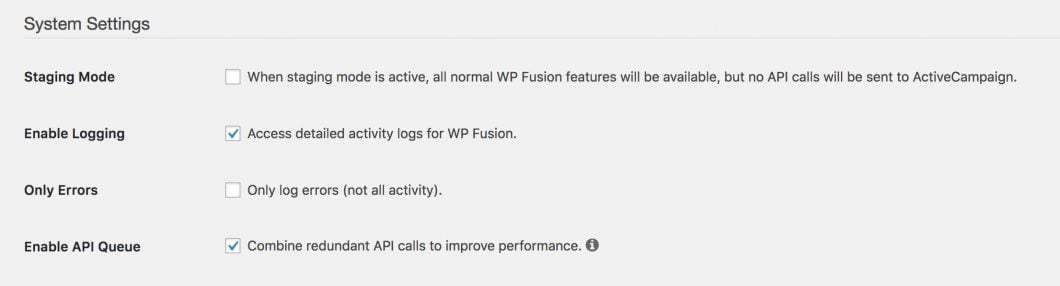
The logs will show any API calls that are being made by WP Fusion, including any field updates, tags being removed or applied, and automated course and membership enrollments.
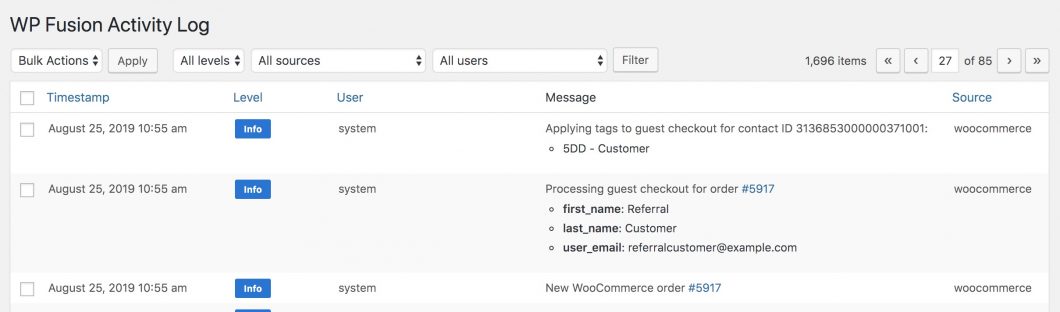
Here’s a typical WooCommerce order recorded in the WP Fusion logs:
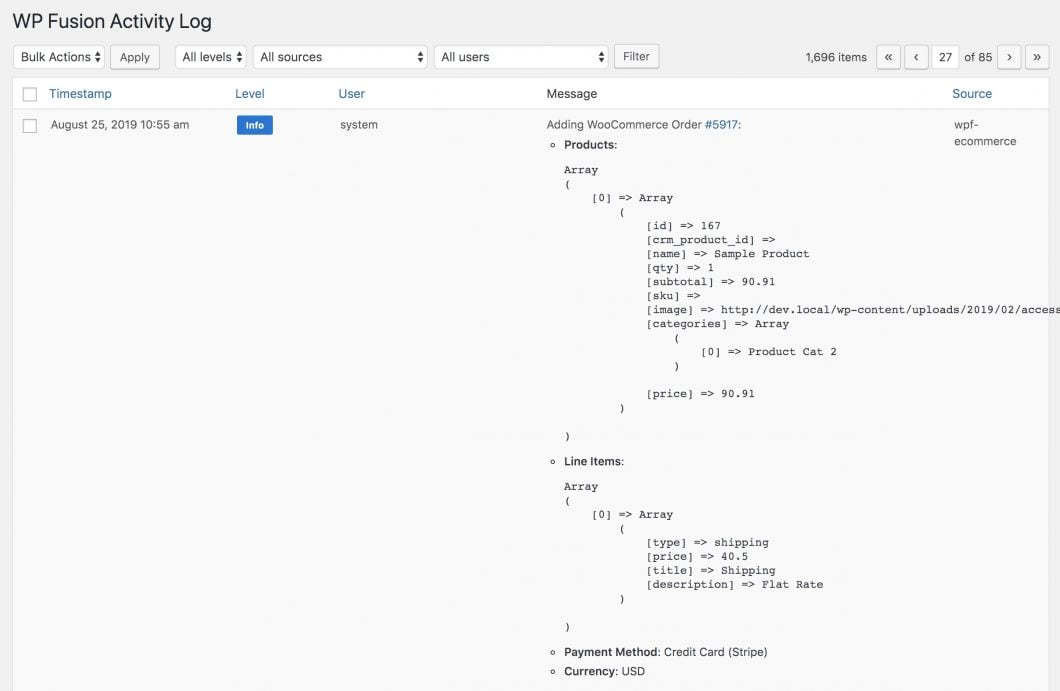
If you’re using the Enhanced Ecommerce addon you’ll also see additional data related to the ecommerce data:
If there are any errors these will also be marked in the logs in orange:
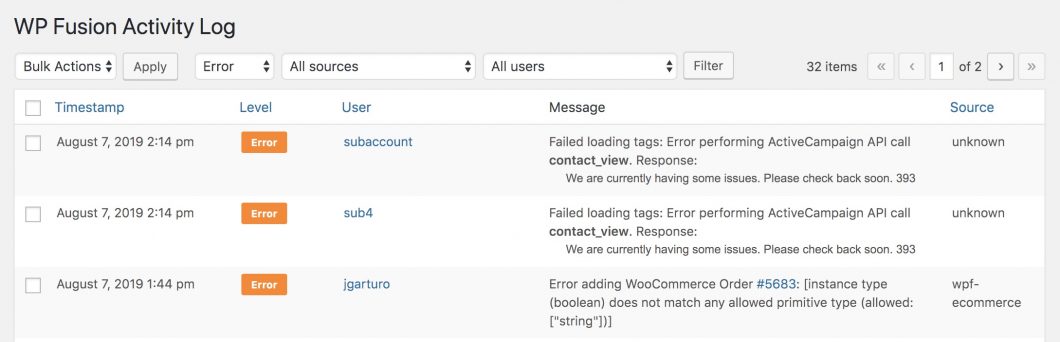
If you can include the error details with your support ticket it will help us to diagnose the issue more quickly.
#Check order notes
Even if you don’t have logging turned on, WP Fusion will still record some information to the order notes for each WooCommerce order.
These can be viewed in the sidebar when editing any single order:
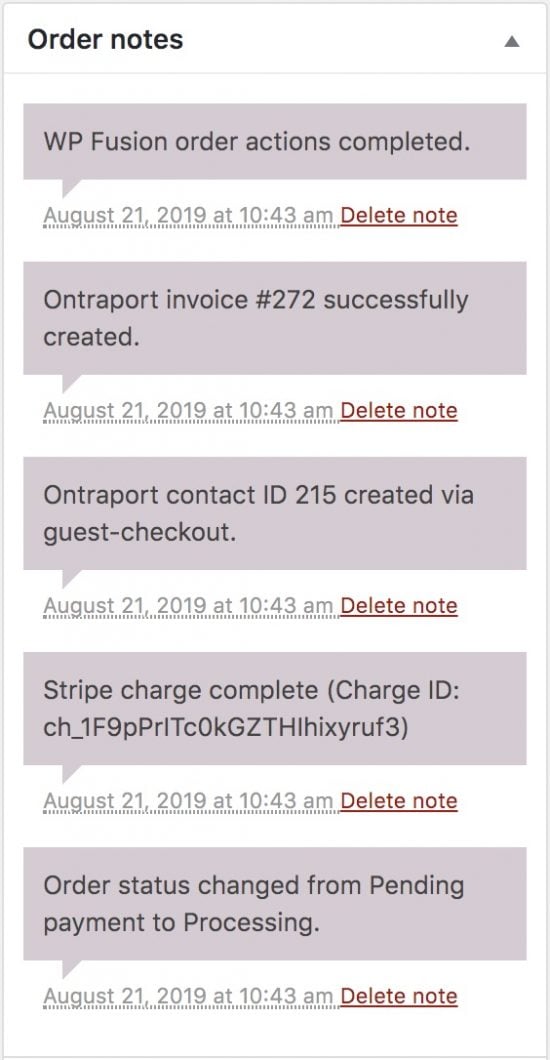
Any API errors will also be added to the order as notes.
#Process order actions again
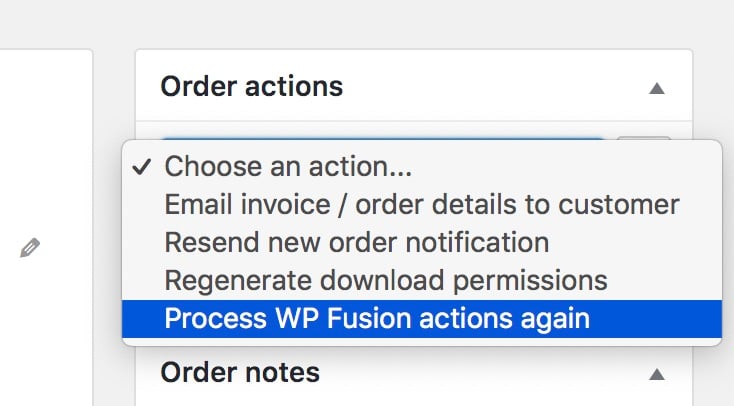
If for some reason an order didn’t get sent to your CRM, or you’d like to process an order again with logging turned on, you can manually process an order again by choosing Process WP Fusion actions again from the Order Actions menu:
#Disable asynchronous checkout
WP Fusion includes an option for WooCommerce called Asynchronous Checkout, which is enabled by default. When this setting is enabled WP Fusion processes all API calls in the background, which speeds up the checkout process.
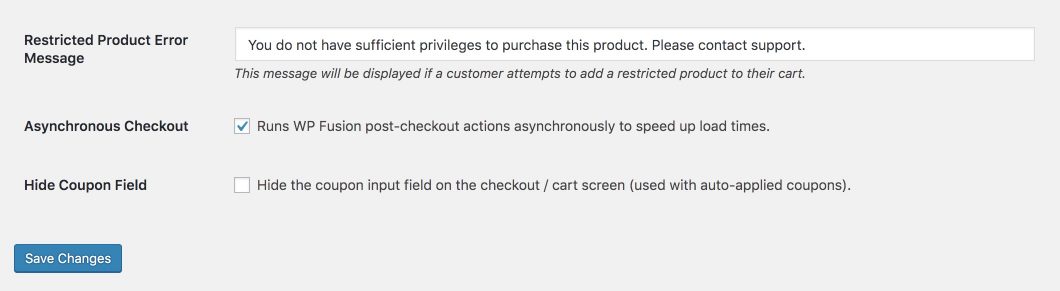
While this works fine on 95% of sites, it can sometimes be blocked by security plugins or firewall rules. If your customers are checking out but no data is being sent to your CRM then turning off this setting is a good diagnostic step.
If turning off Asynchronous Checkout fixes the checkout process then it’s quite likely the background process is being blocked.
- If you’re using WordFence: Putting the WordFence firewall into “learning mode” temporarily has been known to fix the issue
- You can also contact support for additional assistance
#Default settings
When you first install WP Fusion the settings are initialized with some default options. These defaults are sufficient for the majority of sites and don’t need to be changed.
Some things we’ve seen changed that have caused problems are:
#Create Contacts
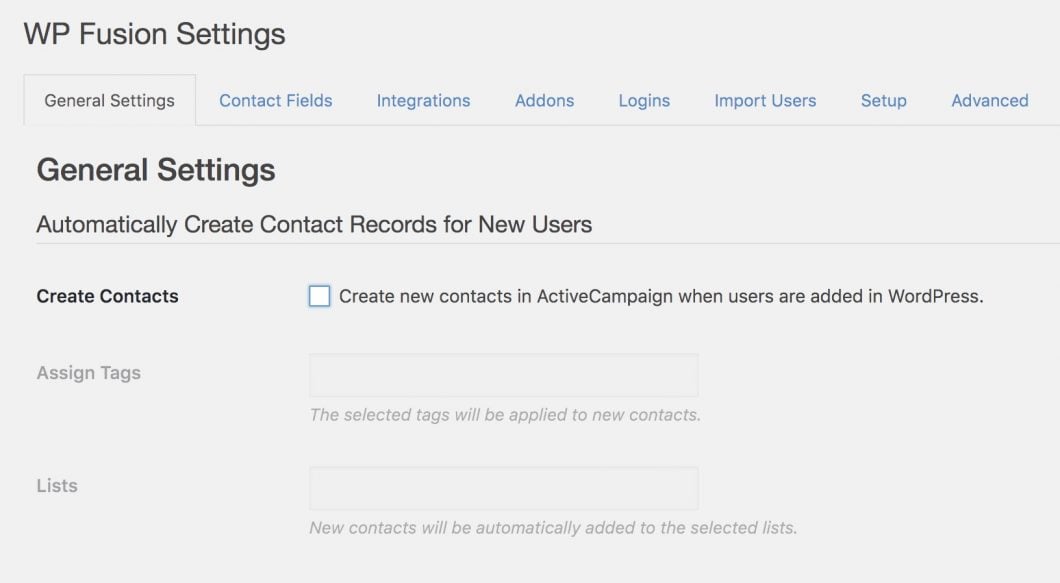
If you un-check the setting for Create Contacts then WP Fusion will not create contact records in your CRM when someone makes a purchase in WooCommerce. It will only apply tags to existing contacts. It is recommended to leave this setting on.
#Limit user roles
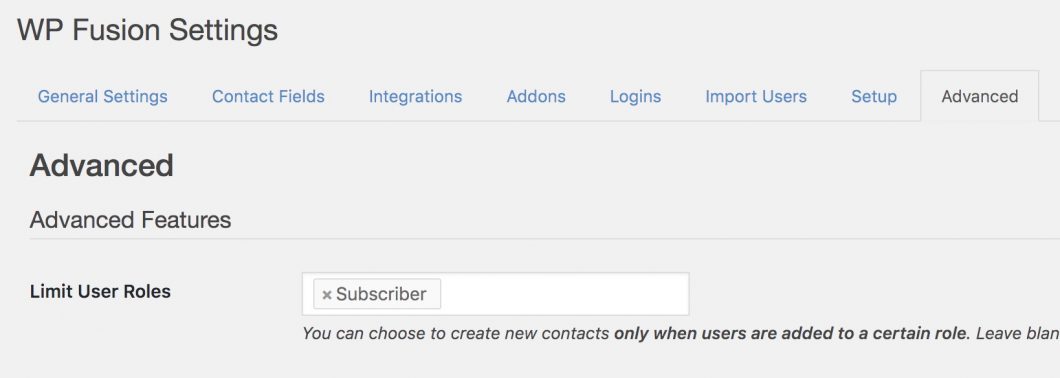
WP Fusion includes a setting to limit contact record creation to certain user roles. In the screenshot above the “Subscriber” role has been specified. This will not work with WooCommerce, since WooCommerce creates users with the role Customer.
It is recommended to leave this setting blank so contact records are created for all new users.