
Running an online store often means wrestling with scattered data. Orders live in one place, customer details in another, and your marketing platform struggles to keep up.
The challenge is even bigger when you consider that nearly 70.22% of online shopping carts are abandoned on average (Baymard Institute, 2025).
Brevo has become a leading platform for email and marketing automation, expanding into ecommerce with features like order tracking, product performance reports, and behavior-based campaigns.
Yet its native WooCommerce plugin is limited, offering no support for other WordPress ecommerce plugins and lacking advanced tools like tagging, segmentation, and personalization.
With the Brevo Enhanced Ecommerce addon in WP Fusion, your site can connect seamlessly to WooCommerce, Easy Digital Downloads, SureCart, GiveWP, etc. Every order, refund, and customer record syncs automatically, creating a complete system for reliable ecommerce reporting and automation.
In this guide, you will learn why Brevo is a strong choice for ecommerce, how to connect it with WordPress, advanced tips for maximizing the integration, and what costs to expect.
Let’s get started.
#🤔 Why Choose Brevo for eCommerce

Brevo is often seen as an email tool, but it has grown into a complete marketing and ecommerce solution. For online stores, this makes it especially valuable because it combines communication, automation, and sales insights in one platform.
Some of the key benefits include:
- Track product performance, average order value, refunds, and customer behavior in one dashboard.
- Send abandoned cart reminders, upsell emails, and targeted product recommendations based on customer activity.
- Sync data from Shopify, WooCommerce, point of sale systems, and other sales channels to create a unified view of your customers.
- Build workflows that nurture leads, reward loyal customers, or re-engage inactive buyers without manual effort.
For many store owners, these features are enough to get started. But when relying on Brevo alone, the options are limited.
Its native WooCommerce plugin covers only the basics, and it does not connect with other popular WordPress ecommerce tools like Easy Digital Downloads, SureCart, or GiveWP. Store owners who want more granular tagging, better segmentation, or content personalization often find themselves looking for workarounds.
WP Fusion provides the missing connection.
It links Brevo with a wide range of WordPress plugins, so every order, refund, and customer record is synced automatically. With WP Fusion in place, Brevo can be used to power advanced tagging, precise customer segments, and automated campaigns that respond to real purchase behavior.
#🔗 How to Connect a WordPress Site With Brevo (Using WP Fusion)
Connecting your WordPress store with Brevo is about more than syncing customer emails. The integration ensures that every order and transaction is captured, giving Brevo the data it needs to run accurate reports and trigger personalized campaigns.
WP Fusion makes this possible by linking Brevo with multiple ecommerce plugins, so your marketing is always powered by complete and reliable information.
#Start With the Basics
Before you begin, make sure a few essentials are in place.
- Have an active Brevo account set up and ready to connect.
- Install and activate WP Fusion on your WordPress site with a Plus or Professional license, since these include the Enhanced Ecommerce addon.
- Ensure your ecommerce plugin is active, whether that’s WooCommerce, Easy Digital Downloads, SureCart, GiveWP, or another supported option.
With these basics covered, you’ll be ready to connect your store to Brevo and start syncing data.

Get Automated. Get WP Fusion.
Unlock Advanced eCommerce Automation With WP Fusion's Brevo Enhanced Ecommerce
Get WP Fusion#Step 1: Connect WP Fusion to Brevo
After installing and activating WP Fusion on your WordPress site, go to Settings → WP Fusion in the dashboard. From the CRM dropdown, select Brevo.

You’ll be asked to enter your Brevo API key, which you can find in your Brevo account settings. Paste the key into the field and click Connect to initialize the connection. Once the connection is confirmed, click Save Changes to save your settings.
At this point, your site is linked to Brevo, and new WordPress users and customers will begin syncing automatically in real time.
#Step 2: Configure Orders or Deals sync
With the connection active, the next step is to decide how you want your ecommerce data to appear in Brevo. WP Fusion’s Enhanced Ecommerce addon supports two options: Orders and Deals.

Orders are part of Brevo’s Ecommerce portal. They provide detailed reports on product performance, order values, and customer activity. Order details are also visible on individual subscriber profiles, making it easier to track what each customer has purchased. For most stores, syncing as Orders is the recommended choice because the reporting and filtering features are more advanced.

Deals appear inside sales pipelines, where each order is logged with a deal title, value, and description. This format is useful if you want to manage orders as part of a sales process or assign them to specific pipeline stages.
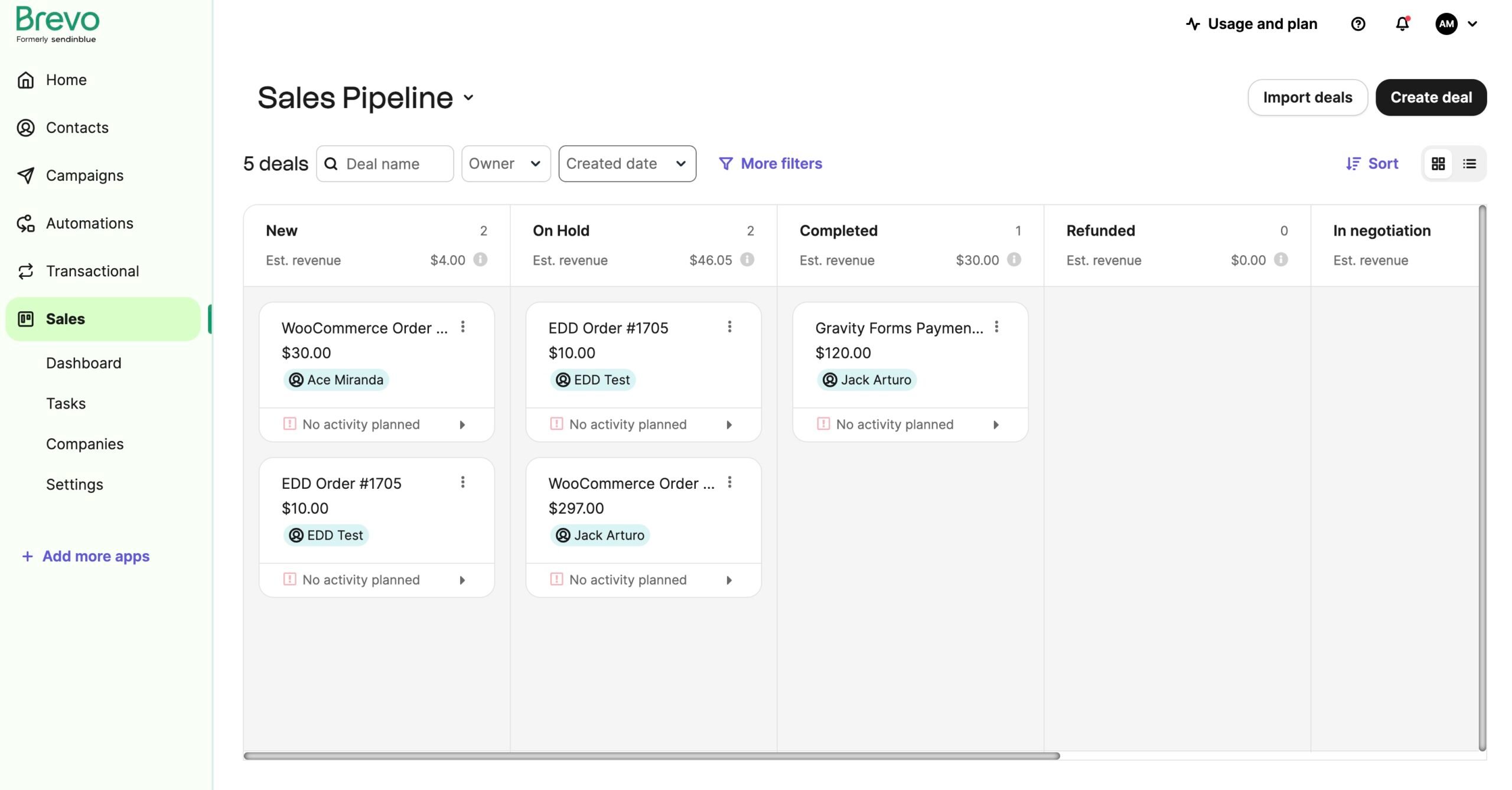
In the Enhanced Ecommerce tab of the WP Fusion settings, you can select whether to sync data as Orders, Deals, or both. New installations default to Orders, while sites already using pipelines will default to Deals. You also have the option to sync line items and other metadata for more granular reporting.
#Step 3: Map WordPress Order Statuses
Once you’ve chosen whether to sync as Orders or Deals, you can decide how WordPress order statuses should map into Brevo. In the Enhanced Ecommerce tab of WP Fusion’s settings, you’ll see options to link WooCommerce statuses like Processing, Completed, Refunded, or Cancelled with Brevo’s order stages or pipeline stages.

This mapping ensures that Brevo always reflects the current state of each order. For example, when an order in WooCommerce moves from Processing to Completed, the connected record in Brevo updates automatically. If an order is refunded or cancelled, those updates can also be pushed across so that your reports and automations stay accurate.
It’s generally not recommended to sync Pending payment orders, since these trigger duplicate API calls and can slow down checkout. Instead, use WP Fusion’s Abandoned Cart Tracking for a more efficient way to capture incomplete orders. By syncing only meaningful statuses, you keep Brevo clean while still getting full visibility into the customer lifecycle.
#Step 4: Test the Integration
Before rolling the setup out to customers, it’s important to confirm that everything is working as expected. Start by placing a test order in your store. Once the order is submitted, check your Brevo account to make sure the order details have synced correctly. You should see the products purchased, the order value, and the customer information listed either under Orders in the Ecommerce dashboard or as a Deal in your pipeline, depending on the option you selected earlier.
Next, review the customer’s profile in Brevo. Confirm that any tags or automations you configured in WP Fusion have been applied. For example, if you set up a tag for first-time buyers or high-value purchases, check that it has appeared on the contact record. Running this test gives you confidence that real transactions will flow smoothly and trigger the right campaigns inside Brevo.

#Step 5: Automate & Personalize
Once your WordPress site and Brevo are fully connected, you can begin using the synced data to power automation and personalization. This is where the integration delivers the most value.
Set up automated campaigns in Brevo that respond to purchase activity. For example, send abandoned cart reminders when an order is left incomplete, create upsell sequences after a customer buys a specific product, or launch re-engagement workflows for customers who have not purchased in a while. Because WP Fusion syncs order details in real time, these campaigns can run with complete accuracy.
You can also use WP Fusion tags to segment customers more precisely. Tags based on purchase history, coupon usage, or total spend allow you to target the right people with the right message. In addition, these tags can be used inside WordPress itself to personalize the experience on your site. You might show different product recommendations, unlock exclusive content, or display custom menus depending on which tags a visitor has.

By combining Brevo’s automation tools with WP Fusion’s detailed syncing and tagging, your store can deliver campaigns and experiences that feel highly relevant to each customer.
#Step 6: Abandoned Cart Tracking & Event Tracking
WP Fusion also provides add-ons that extend the Brevo integration, available with the Plus and Professional licenses.
The Abandoned Cart Tracking addon captures incomplete checkouts from WooCommerce, Easy Digital Downloads, MemberPress, and other plugins. Customers are added to Brevo as contacts with their cart details and a recovery URL, making it easy to send automated recovery emails or discounts.

The Event Tracking addon records actions like form submissions, course completions, or subscription renewals and syncs them to Brevo in real time. These events can be used as triggers or conditions in automations, helping you run campaigns that respond to specific customer behavior.
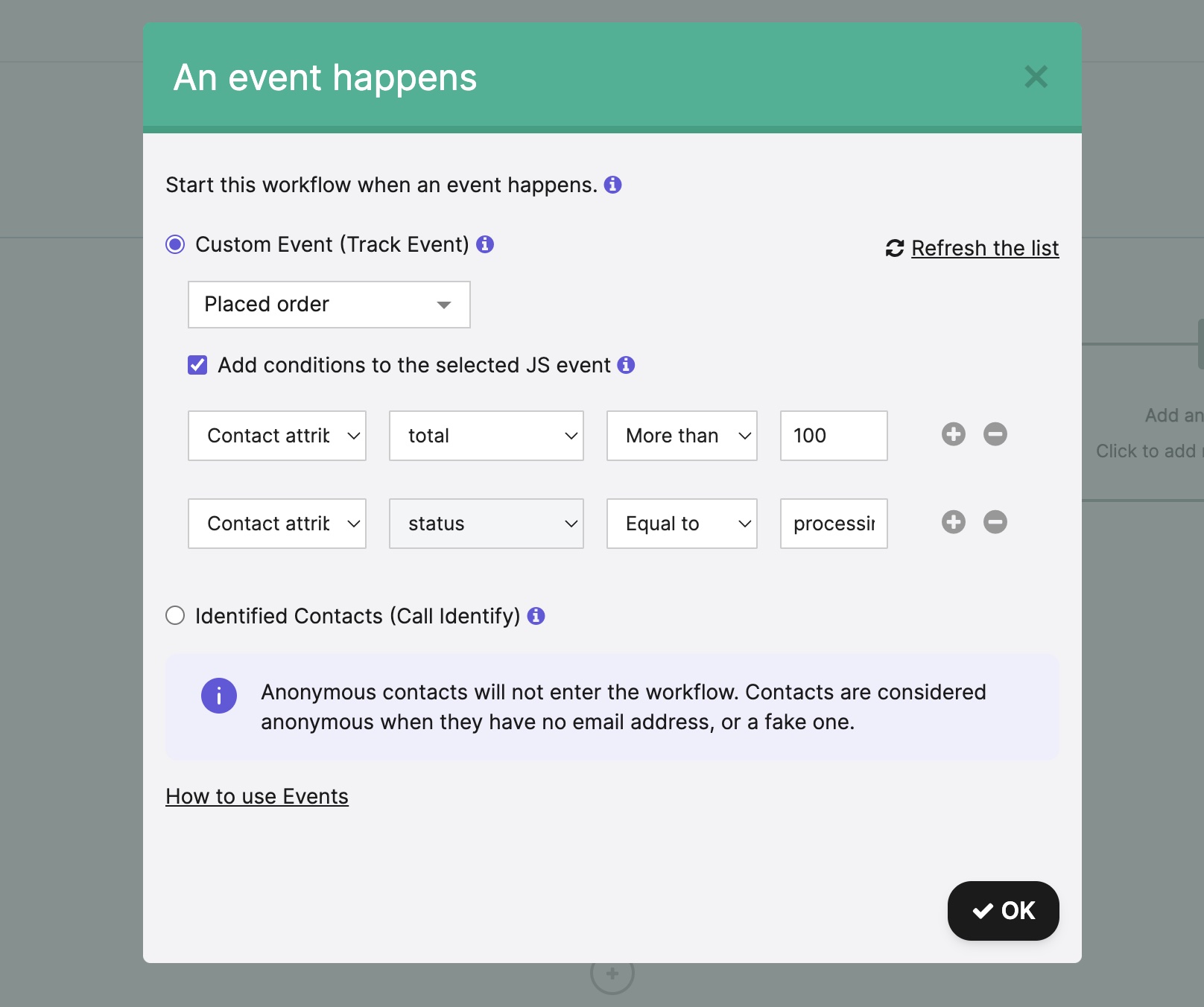
These addons give Brevo a more complete picture of your customers and open up new opportunities for personalization and automation.
#💰 How Much Does the Brevo + WP Fusion Integration Cost?
When planning your ecommerce setup, it helps to understand what investment is required. Both Brevo and WP Fusion offer flexible pricing that can scale with your store.
Brevo has a free plan for basic email and messaging, with paid plans starting under $10 per month. Higher tiers add features like marketing automation, advanced reporting, and A/B testing. Enterprise-level accounts provide unlimited contacts and dedicated support, making them a fit for large or fast-growing businesses.
WP Fusion is sold as an annual license. To unlock the Enhanced Ecommerce addon, you will need either the Plus or Professional license, which costs $427 and $647, respectively. These tiers include everything required to sync orders, track refunds, and apply advanced tagging inside Brevo.
The combined cost depends on your choice of Brevo plan and WP Fusion license.
A small store can get started affordably with an entry-level Brevo plan and WP Fusion Plus, while larger businesses may prefer Brevo Business or Enterprise paired with WP Fusion Professional.
Together, they deliver a complete integration that unifies your WordPress ecommerce data with Brevo’s automation and reporting tools.
#💡 Who Should Use the Brevo + WP Fusion Integration
Not every store will need the full power of Brevo combined with WP Fusion, but for many WordPress businesses, the integration can be a game-changer. It is particularly well-suited for:
- WordPress store owners already using Brevo who want to extend its capabilities beyond basic email campaigns.
- Businesses running WooCommerce, Easy Digital Downloads, SureCart, or GiveWP that want all sales data synced into Brevo for unified reporting and automation.
- Store owners focused on automation who want to run abandoned cart reminders, upsell campaigns, loyalty programs, or re-engagement workflows triggered by real purchase activity.
- Teams that need precise segmentation, using WP Fusion tags to build detailed customer profiles and trigger the right messages at the right time.
- Ecommerce sites aiming for personalization, such as showing custom product offers or gated content based on Brevo tags synced through WP Fusion.
- Companies managing multiple sales channels that need one central system to keep customer records accurate across WordPress and Brevo.
For these types of businesses, the integration is not just about convenience. It creates a seamless connection between sales data and marketing, allowing every customer interaction to feel more targeted and intentional.
#✨ Conclusion
Brevo has become more than a marketing platform. Its ecommerce features give store owners valuable insights into sales performance, customer behavior, and product trends. But on its own, the platform has limitations when used with WordPress. The native WooCommerce plugin covers only the basics and does not extend to other ecommerce plugins.
With WP Fusion’s Enhanced Ecommerce addon, you can sync orders, refunds, and customer data from multiple WordPress plugins into Brevo.
This integration unlocks advanced tagging, segmentation, and automation that go far beyond simple email campaigns. Store owners can recover more carts, deliver targeted offers, and even personalize content on their site based on Brevo data.
For businesses that want a unified system to manage both sales and marketing, Brevo and WP Fusion together provide a complete solution. The result is a more efficient workflow, deeper customer insights, and campaigns that feel relevant at every step of the buyer’s journey.
If your goal is to connect your WordPress store with Brevo, streamline your data, and unlock smarter automation, the Brevo + WP Fusion integration is a powerful way to make it happen.
Get Automated. Get WP Fusion.
Brevo + WP Fusion = Complete eCommerce Integration in WordPress
Get WP FusionCart abandonment rate stats source: https://baymard.com/lists/cart-abandonment-rate