You installed WP Fusion to stop copying contacts between WordPress and your CRM by hand. This guide walks you from a fresh install to a live connection, a test sync, and your first tag-based automation—usually in under an hour.
#What you will set up
- A secure link between WordPress and your CRM or email platform
- Contact field mapping so profiles stay in sync
- At least one automation that applies a CRM tag from site activity

Get Automated. Get WP Fusion.
Ready to connect WordPress and your CRM? View WP Fusion plans.
View pricing#Before you begin
You will need an active WP Fusion license (or a trial from our sales team), administrator access to WordPress, and a CRM account with permission to create API keys or connect third-party apps. If you run a staging site, connect WP Fusion there first—most CRMs let you use separate lists or tags for test contacts.
WP Fusion syncs WordPress users (and guests, when supported) to CRM contacts. It does not replace your CRM automations; it keeps data aligned so those automations fire on accurate tags and fields.
#Step 0: Pick your stack
WP Fusion supports 100+ CRMs and deep integrations with membership, LMS, and ecommerce plugins. Start with the CRM you already use and the plugin that defines your business model.
- CRM: ActiveCampaign, HubSpot, Kit (ConvertKit), FluentCRM, or HighLevel
- Site type: Membership (MemberPress), courses (LearnDash), or store (WooCommerce)
Running a course business? Read WP Fusion for course creators after you finish the basics here.
#Step 1: Connect your CRM
Install WP Fusion from your account downloads or the WordPress plugin screen. Open Settings → WP Fusion and choose your CRM from the list. Each platform has a dedicated setup guide with API keys and permission notes.
Follow the installation guide for your CRM. When the connection test passes, WordPress can create and update contacts automatically.

#Step 2: Map fields and run a test sync
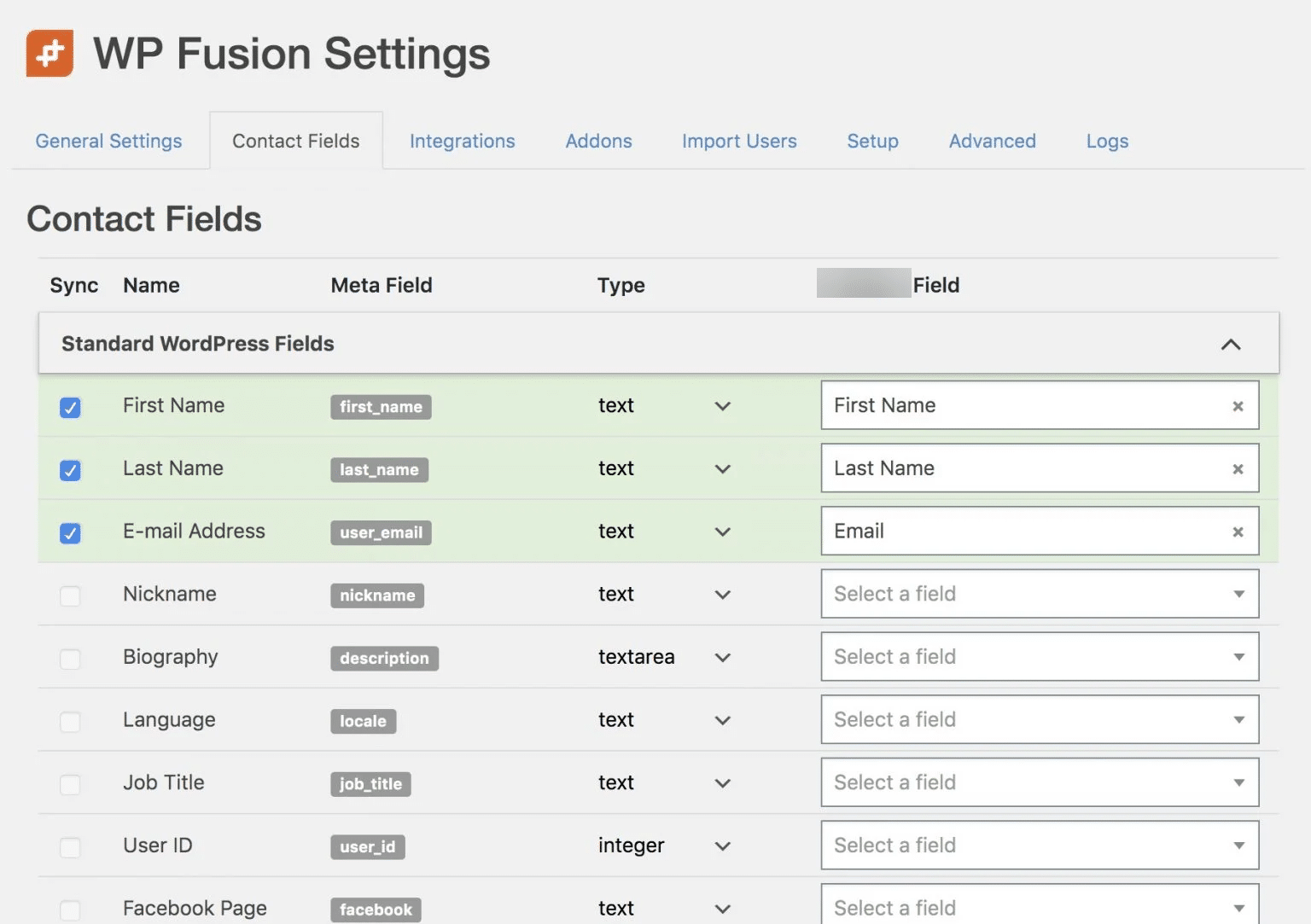
On the Contact Fields tab, map WordPress user meta to CRM fields (email, name, phone, custom fields). Save your mapping, then trigger a sync: register a test user, submit a test form, or update your own profile.
Open your CRM and confirm the contact exists with the fields you expect. If something is missing, check the activity log in WP Fusion for the API response.
Full walkthrough: syncing contact fields.
Get Automated. Get WP Fusion.
See which WP Fusion license includes your CRM and integrations.
Compare plans#Step 3: Your first automation (tag → action)
Tags are the language WP Fusion uses between WordPress and your CRM. When something happens on your site—a purchase, lesson completion, or form submission—you can apply or remove tags and let your CRM automations take over.
Pick one high-value event and wire it up first. Examples:
- WooCommerce: New order → apply tag
Customer - LearnDash: Course enrolled → apply tag
Enrolled - Course Name - MemberPress: Membership activated → apply tag for the plan level
Configure the tag on the integration settings screen for your plugin, then confirm the tag appears on the contact in your CRM. Details: working with tags.
#Step 4: Lock content to tags (optional)
Many sites use CRM tags to control access—members-only pages, bonus modules, or upsell areas. WP Fusion can protect posts, pages, and menus based on tags synced from your CRM.
See access control when you are ready to gate content.
#Troubleshooting a new connection
If contacts are not appearing in your CRM, work through this list before opening a support ticket:
- Confirm the CRM connection test passes in Settings → WP Fusion → General
- Check that the user has an email address WordPress can send to the CRM
- Review the activity log for API errors (rate limits, invalid keys, or field mismatches)
- Verify your license includes the CRM and integration you are using
Our support team can read activity logs on paid licenses and help you adjust field mapping or tag rules.
#Step 5: What to do next
- Course businesses → WP Fusion for course creators
- Comparing Zapier or Make → WP Fusion vs Zapier
- All integrations → documentation hub
#Frequently asked questions
#Do I need a developer to set up WP Fusion?
Most owners and marketers connect their CRM and configure tags without code. Custom field mapping or advanced access rules may need a developer if your stack is unusual.
#Does WP Fusion replace my CRM?
No. WP Fusion connects WordPress to the CRM you already use. Your lists, automations, and reporting stay in the CRM; WP Fusion keeps WordPress data aligned.
#How is this different from Zapier?
Zapier excels at connecting many SaaS apps. WP Fusion is built for WordPress: deeper user meta, membership and LMS events, and tag-based access on your site. Read WP Fusion vs Zapier if you are choosing between them.
#How long does setup take?
Most sites connect their CRM and map core fields in 20–40 minutes. Your first tag automation adds another 15–30 minutes depending on the integration (WooCommerce and LearnDash have dedicated settings screens).
#Can I import existing WordPress users into my CRM?
Yes. WP Fusion includes tools to batch-export users to your CRM and apply tags based on roles or membership levels. See the documentation section for your CRM for export options and limits.
Major WordPress update on the horizon? See our guide: WordPress 7 is coming — read before you update.