Building an email list is one of the most effective ways to grow your audience and drive long-term engagement on your WordPress site. But not all email subscribers are equal!
Adding unverified or disinterested contacts can hurt your deliverability, damage your sender reputation, and lead to higher spam complaints.
Double opt-in adds an extra layer of confirmation to your email signup process. It helps ensure only genuinely interested people join your list, protecting both your reputation and your marketing results.
In this guide, we will explain how double opt-in works for WordPress newsletters, why it matters for both marketing and legal compliance, and how to set it up on your site.
We will also show how WP Fusion helps WordPress users track opt-in consent, automate subscriber management, and even restrict content access until email confirmation occurs.
#🤔 What is a WordPress Newsletter Double Opt-In? (+ Benefits & Drawbacks)
Double opt-in is a simple but powerful way to make sure your email list contains only people who genuinely want to hear from you. It works by adding a confirmation step to the signup process.
Here’s what goes on behind the scenes:
- A visitor fills out a subscription form on your WordPress site
- They immediately receive a confirmation email with a unique link
- Only after clicking the link are they officially added to your mailing list
This extra step helps protect your list from fake, mistyped, or spam email addresses and ensures that your subscribers actively want to receive your content.
In contrast, a single opt-in process adds subscribers to your list as soon as they submit the form, with no confirmation required. While this may grow your list faster, it often results in lower engagement rates and more spam complaints.
Many popular form builders and email marketing platforms, such as Ninja Forms, Fluent Forms, Mailchimp, and ActiveCampaign, support double opt-in by default.
But if you want more control over the process directly within your WordPress site, tools like WP Fusion can help. WP Fusion lets you track and enforce double opt-in inside WordPress, giving you the flexibility to manage consent, control when subscriber data is sent to your CRM, and even restrict access to content until email confirmation occurs.
#✅ Benefits of WordPress Double Opt-ins
Let’s take a closer look at why double opt-in is considered one of the most effective ways to protect your email list and improve your overall marketing results.
1. Higher List Quality: Double opt-in ensures that only verified, valid email addresses make it onto your list. It significantly reduces the risk of fake, mistyped, or bot-generated addresses, which means your list is filled with genuinely interested subscribers.
2. Better Engagement and Deliverability: Subscribers who confirm their email addresses are more likely to engage with your content. This leads to higher open rates, better click-through rates, and fewer spam complaints. Over time, a clean, engaged list helps maintain your sender reputation and improves email deliverability.
3. GDPR and Global Compliance Support: Double opt-in provides clear, documented proof of consent, which is a critical requirement under privacy laws such as the GDPR in Europe. It is also considered a best practice under other regional regulations like the California Consumer Privacy Act (CCPA), even if not legally required in every case.
4. Content Protection and Lead Qualification: With WP Fusion, you can go a step further by restricting access to lead magnets, free trials, or other gated content until a subscriber confirms their email address. This adds an extra layer of lead qualification and ensures your resources only reach engaged, verified contacts.
#❌ Drawbacks to Consider
While double opt-in offers strong advantages, there are a few trade-offs to be aware of:
- The extra step can add friction to the signup process, which may reduce the total number of subscribers.
- Some confirmation emails may land in spam or promotions folders, causing potential subscribers to miss them.
- Double opt-in requires additional setup, especially when integrating WordPress forms, CRMs, and marketing platforms.
Despite these challenges, the long-term benefits of a more engaged, compliant, and high-quality email list typically outweigh the downsides for most WordPress site owners.
#🛠️ How to Set Up Double Opt-in in WordPress
For WordPress site owners, setting up double opt-in often requires piecing together different tools, a form builder here, an email platform there, and hoping everything works as expected.
That’s where WP Fusion simplifies the process.
It acts as the bridge between your WordPress site and your CRM, giving you more control over how and when subscriber data is sent, and ensuring your double opt-in process works seamlessly.
Unlike relying only on email marketing platforms, WP Fusion allows you to enforce double opt-in directly at the WordPress level. It also keeps your subscriber data in sync with your CRM, making it easier to track consent and automate follow-up actions.
In the example below, we’ll walk through how to connect WordPress to HubSpot using WP Fusion, as the first step toward implementing a reliable double opt-in process for your newsletter.
Please note: Before we dive in, it’s important to note that WP Fusion offers both a free Lite version and a Pro version. While WP Fusion Lite provides basic user sync for WordPress, the features required to properly set up and automate double opt-in, including CRM integration, consent management, and tagging, are only available with the Pro version. WP Fusion Pro starts at $297 per year. In the steps below, we’ll be using the Pro version to demonstrate the full double opt-in setup.

#1️⃣ Connect WordPress to HubSpot With WP Fusion
To get started, install and activate the WP Fusion plugin on your WordPress site. Once activated, go to your WordPress dashboard and open WP Fusion → Settings.
From the CRM dropdown, select HubSpot, then click Authorize with HubSpot to connect your account.
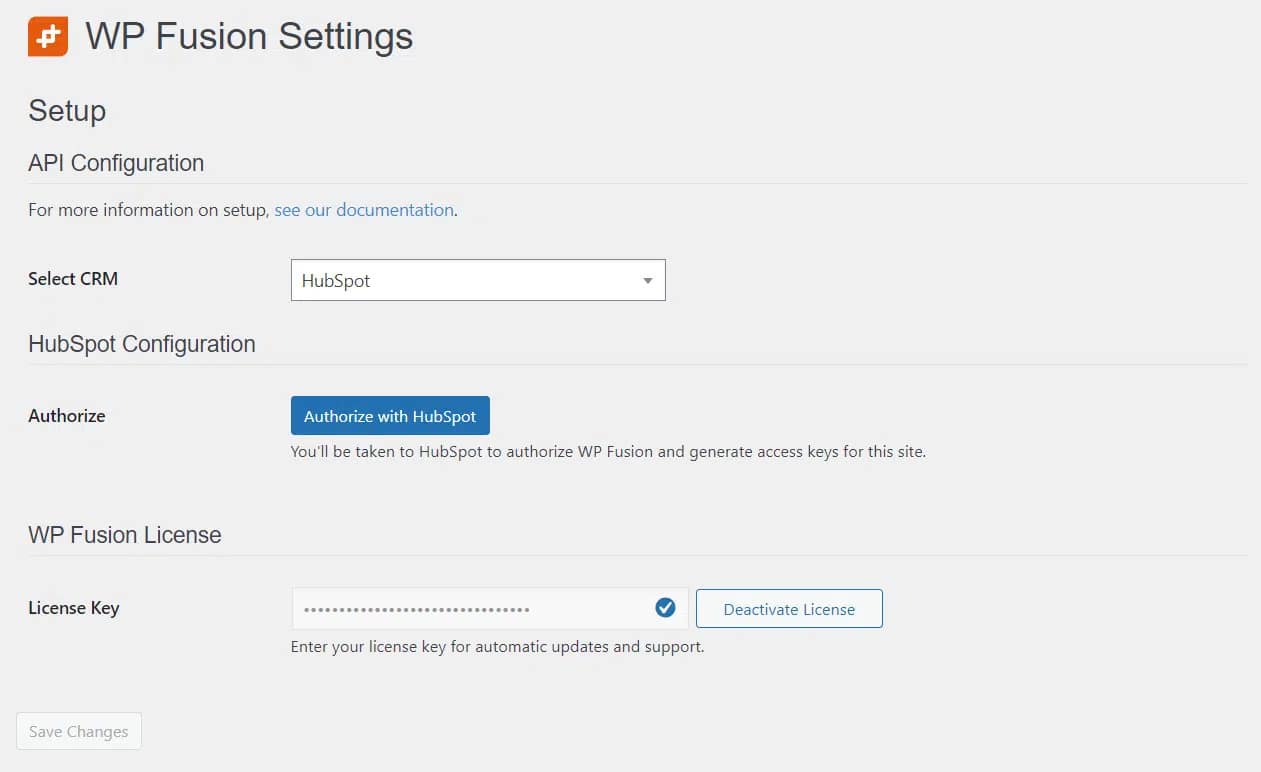
You will be redirected to HubSpot, where you can select your HubSpot domain and approve the connection. Once authorized, you will return to your WordPress dashboard.

Next, enter your WP Fusion license key in the License section to unlock full functionality.
Before moving on, review your sync settings:
- You can enable webhooks if you want new HubSpot contacts to be automatically created as WordPress users
- Map your WordPress user fields to the matching HubSpot contact properties
- Adjust any additional tracking options (like site tracking and event tracking) based on your setup
Once connected, WP Fusion ensures that activity on your WordPress site, such as newsletter signups, form submissions, or purchases, is automatically sent to HubSpot. This gives you a reliable foundation for automating your double opt-in process and keeping your subscriber data in sync.
For more assistance, take a look at this WordPress-HubSpot integration guide.
#2️⃣ Control Opt-Ins Inside WordPress
Once WP Fusion is connected to your CRM, the next step is to control when and how newsletter subscriber data gets sent from your WordPress site. This is especially important for managing consent and ensuring that only verified, interested contacts end up in your email list.
WP Fusion gives you two key ways to handle opt-in consent before any data leaves your site.
#Add a Marketing Consent Checkbox to Forms & Checkout Pages
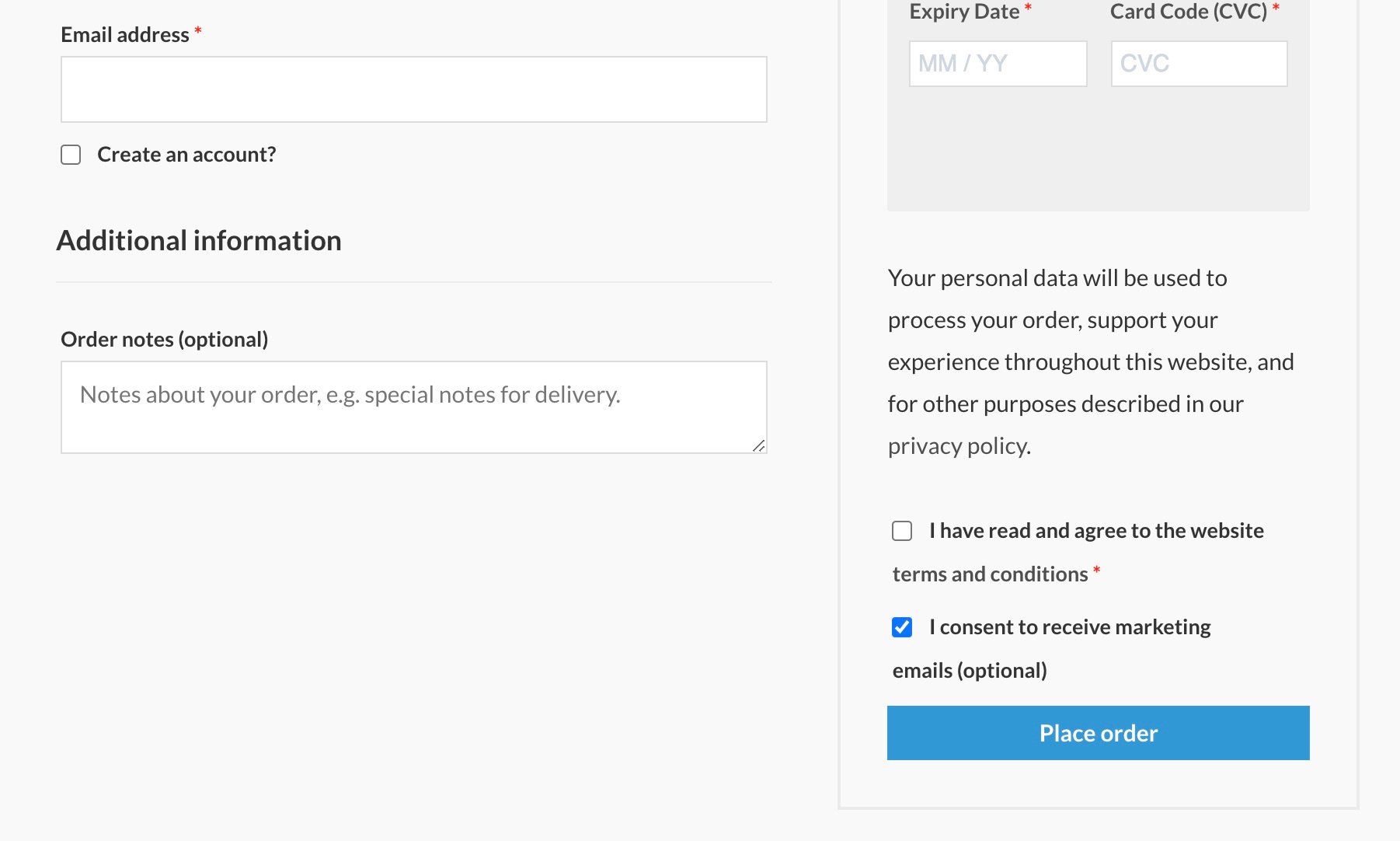
If you use plugins like WooCommerce, Easy Digital Downloads, or GiveWP, WP Fusion allows you to add a marketing consent checkbox to your forms. This gives subscribers a clear choice to opt in to your newsletter and marketing emails.
Here’s how to set it up:
- Go to your WP Fusion settings for the relevant plugin
- Enable the marketing consent checkbox option
- Customize the checkbox label text to make it clear what users are opting in to
- Choose whether the checkbox should be checked or unchecked by default
- Select which tags to apply to contacts who check the box
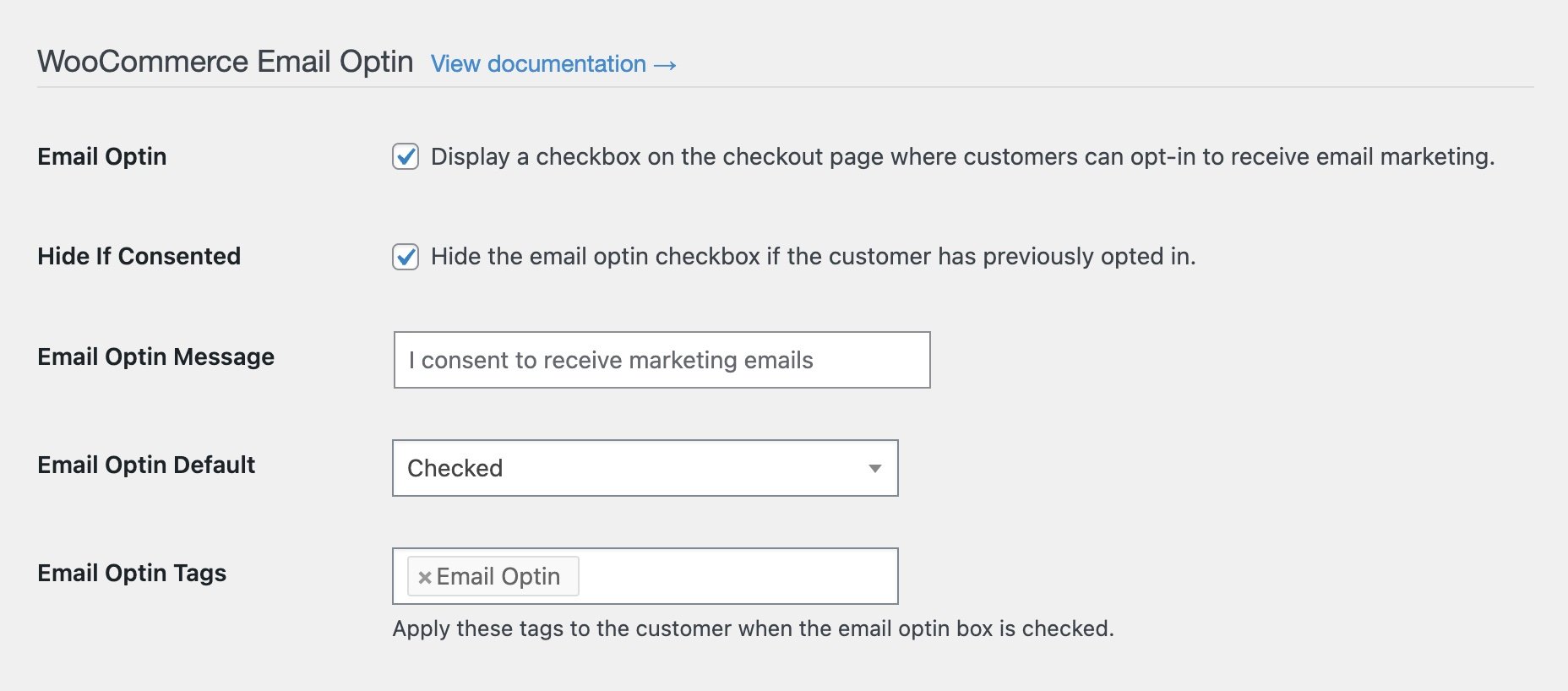
Even if your CRM does not enforce double opt-in by default, this setup allows you to segment contacts based on consent. Only those who actively check the box are tagged for marketing, giving you greater control and compliance.
#Defer CRM Sync Until Account Activation
If you run a membership or community site using plugins like BuddyPress, BuddyBoss, Ultimate Member, WP Members, User Meta, or WP User Manager, WP Fusion offers another helpful feature called Defer Until Activation.
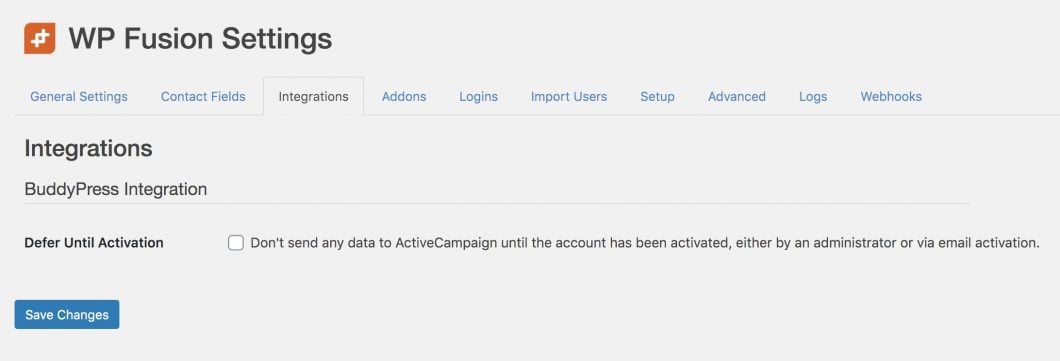
When this option is enabled:
- No contact data is sent to your CRM when a user registers on your site
- Data is only sent after the user confirms their account by clicking a link in a confirmation email or after manual approval by an admin
This prevents fake, mistyped, or unverified email addresses from being added to your CRM, protecting the quality of your newsletter list. It also protects your email list quality and ensures that only confirmed users are included in your automation workflows.
Need help? Follow this help doc on Setting Up Double-Opt-Ins in WordPress.
#3️⃣ Set Up Double Opt-in Inside Your CRM
Once you have controlled how and when contact data is sent from WordPress, the final step is to set up the double opt-in process inside your CRM. This is where confirmation emails are triggered and newsletter subscriber consent is officially recorded.
In this example, we will use HubSpot, but the general process is similar for most CRMs that integrate with WP Fusion.
#Assign Contacts to a List in HubSpot
- In your WordPress dashboard, go to the WP Fusion settings for your forms
- This includes form builders like Elementor Forms, Fluent Forms, Gravity Forms, and other forms supported by WP Fusion
- Select which HubSpot list new contacts should be added to when they submit a form or register on your site
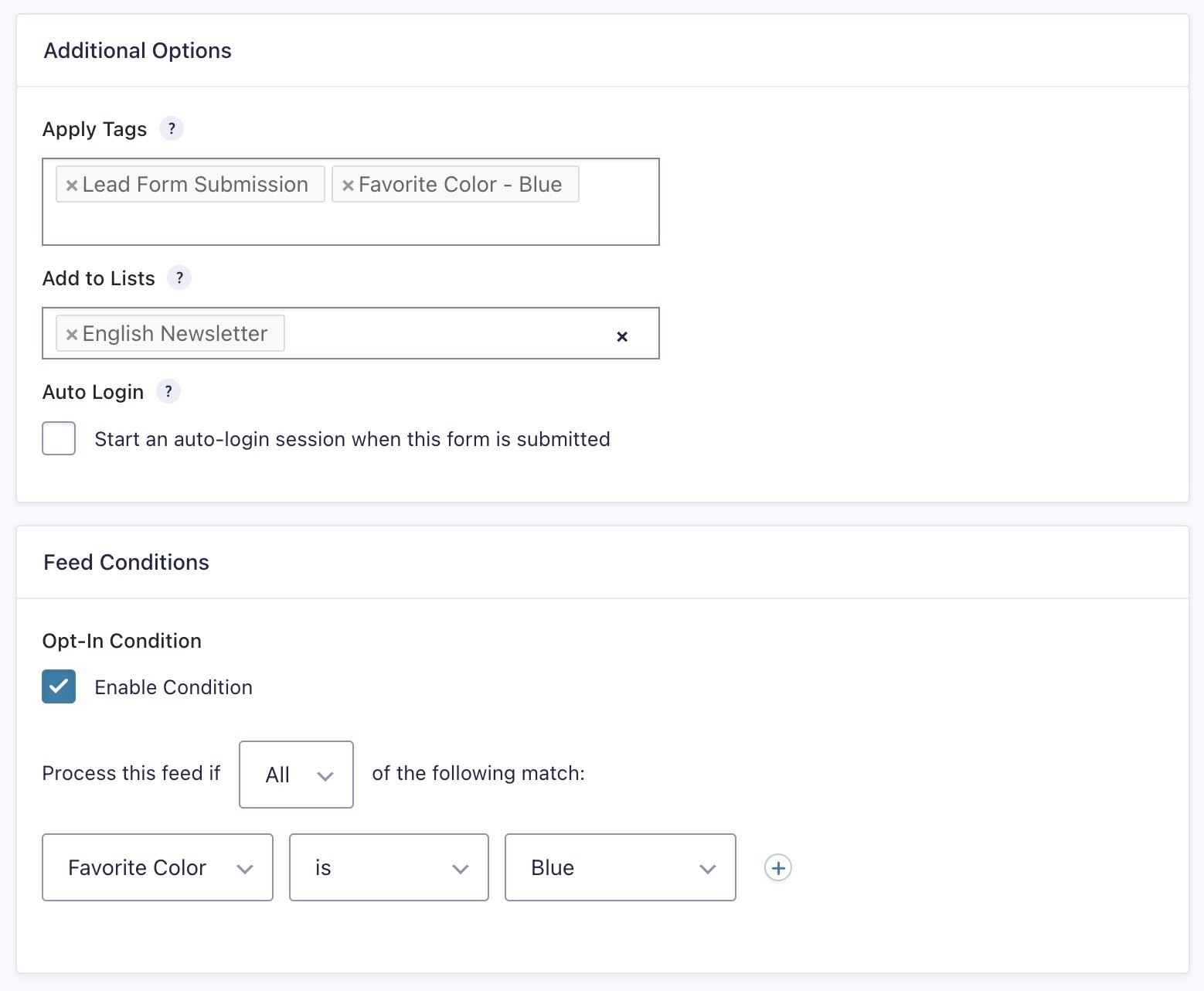
In HubSpot, adding a contact to a list can trigger a double opt-in email sequence, provided that the list has double opt-in enabled. The confirmation email contains a link that the subscriber must click to be officially added to your list.
#Enable Double Opt-in in HubSpot
- Log in to your HubSpot account
- Go to your list settings and make sure double opt-in is enabled for the relevant list
- Review the confirmation email template to ensure it matches your branding and provides clear instructions
HubSpot will handle sending the confirmation email and tracking whether the subscriber confirms their subscription.
#Configure Resubscribe Behavior (Optional)
If you want to allow contacts who previously unsubscribed to opt back in. In your WP Fusion form settings, you can assign them to a resubscribe list. Be careful to only use this option when contacts have clearly given consent again. For example, you might use a dedicated form with clear messaging stating that submitting the form will resubscribe them to your emails.
#What About Other CRMs?
WP Fusion supports a wide range of CRMs, each with different options for managing double opt-in. Some CRMs, like Mailchimp and Brevo, allow you to trigger confirmation emails directly from the WP Fusion settings. Others, like FluentCRM and Groundhogg, use status fields to manage the opt-in process.
For CRM-specific instructions, visit the WP Fusion Double Opt-in Help Documentation.
#📝 Conclusion
Double opt-in remains one of the most effective ways to build a high-quality, engaged email list for your WordPress site.
By adding a simple confirmation step, you can reduce fake signups, improve deliverability, and demonstrate clear consent for marketing emails. This protects both your sender reputation and your legal compliance under regulations like GDPR and CCPA.
WP Fusion makes the process even more reliable by giving you control over opt-in management directly inside WordPress. Whether you use forms, checkout pages, or membership platforms, WP Fusion helps ensure that only confirmed, interested contacts make it to your CRM. You can also combine double opt-in with gated content strategies, ensuring that your most valuable resources are shared only with verified subscribers.
If you want a seamless, secure double opt-in process that works across WordPress and your CRM, explore how WP Fusion can simplify your setup and improve your email list quality today.
If you have any questions about setting up WordPress newsletter double opt-in, let us know in the comment section below.