
#Overview
WP Fusion integrates with WP Courseware to let you automatically enroll students in courses and track student progress using tags.
You can find the settings for WP Fusion under WP Courseware » WP Fusion in your WordPress admin.
#General Settings
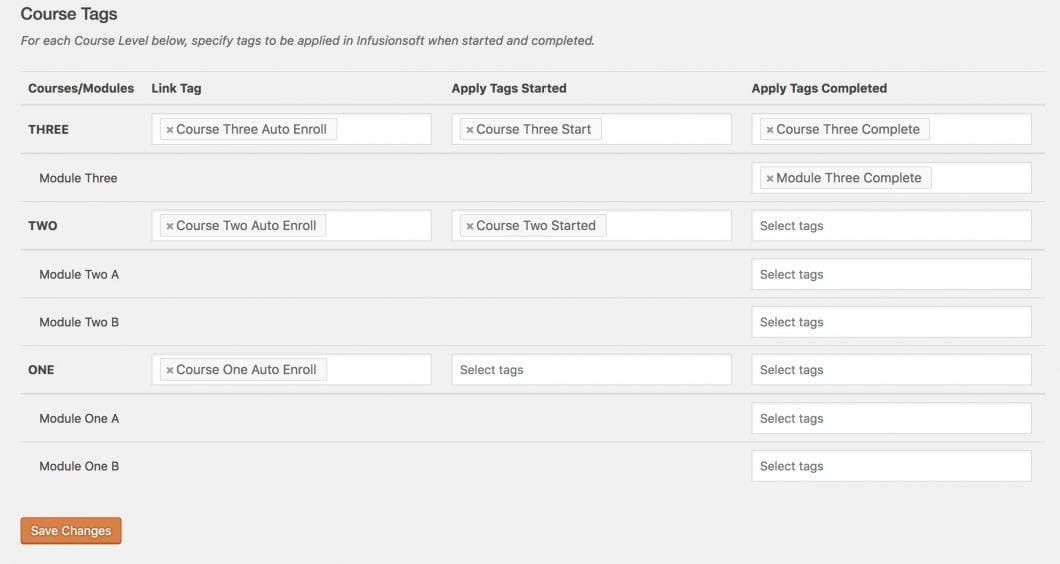
From the settings page, you’ll see each of your courses and modules displayed in a table. For courses, there are three options:
- Linked Tag: This allows you to choose one tag that is “linked” with the course. When the tag is applied, the user will automatically be enrolled in the course. When the tag is removed, the user will be removed from the course.
- Apply Tags – Enrolled: These tags are applied when a user is enrolled in a course. These will not be applied if you have a course set to auto-enroll all users.
- Apply Tags – Completed: These tags are applied when a course is marked complete.
In addition, for each of your modules, you can specify a tag or tags to be applied when the module is marked complete.
#Unit Settings
Settings for individual units can be configured via the normal WP Fusion meta box at the side of any unit.
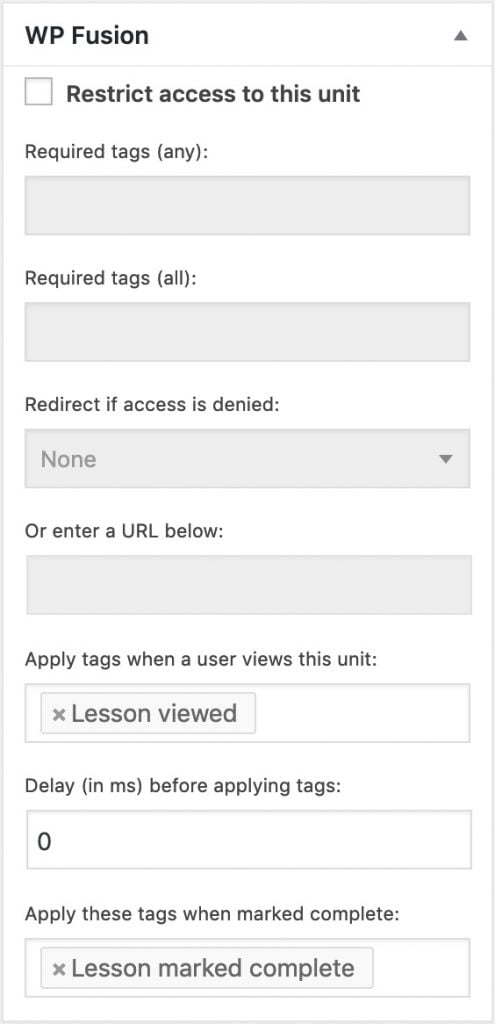
In addition to the normal settings for controlling access and setting redirects, there is an option to apply tags when the unit has been marked complete.
Was this helpful?
Let us know if you liked the post. That’s the only way we can improve.