
Overview
Pipedrive offers a built-in Labels system for organizing and segmenting your contacts. For the purposes of segmenting contacts, restricting access to content, and tracking user activity on your site, WP Fusion can use either Labels or a custom multiselect field.
Labels vs. Custom Fields
#When to Use Labels
Pipedrive’s built-in Labels system is the recommended approach for most WP Fusion users. Benefits include:
- Native integration: Labels are a core Pipedrive feature with full platform support
- Visual organization: Each label can have its own color for easy visual identification
- Better performance: Labels are optimized for filtering and searching in Pipedrive
- No setup required: Works out of the box without creating custom fields
- Mobile support: Labels display properly in Pipedrive’s mobile apps
#When to Use a Custom Multiselect Field
In some cases, you may prefer to use a custom multiselect field instead of labels:
- Migration from existing setup: If you’re already using a custom field for segmentation
- Custom field requirements: When you need segmentation data to appear in custom reports or specific views
- Label limit concerns: If you’re approaching Pipedrive’s label limits and need separate tracking
- Integration requirements: When other tools or integrations expect a specific custom field
Configuration
#Default Setup (Labels)
When you first connect WP Fusion to Pipedrive, the integration will automatically detect and use the label_ids field for segmentation. You can verify this in WP Fusion » Settings » Setup under the Segmentation Field setting.
#Custom Field (“Tags”)
To use a custom field for segmenting contacts with Pipedrive, open Pipedrive and head to Settings » Data Fields.
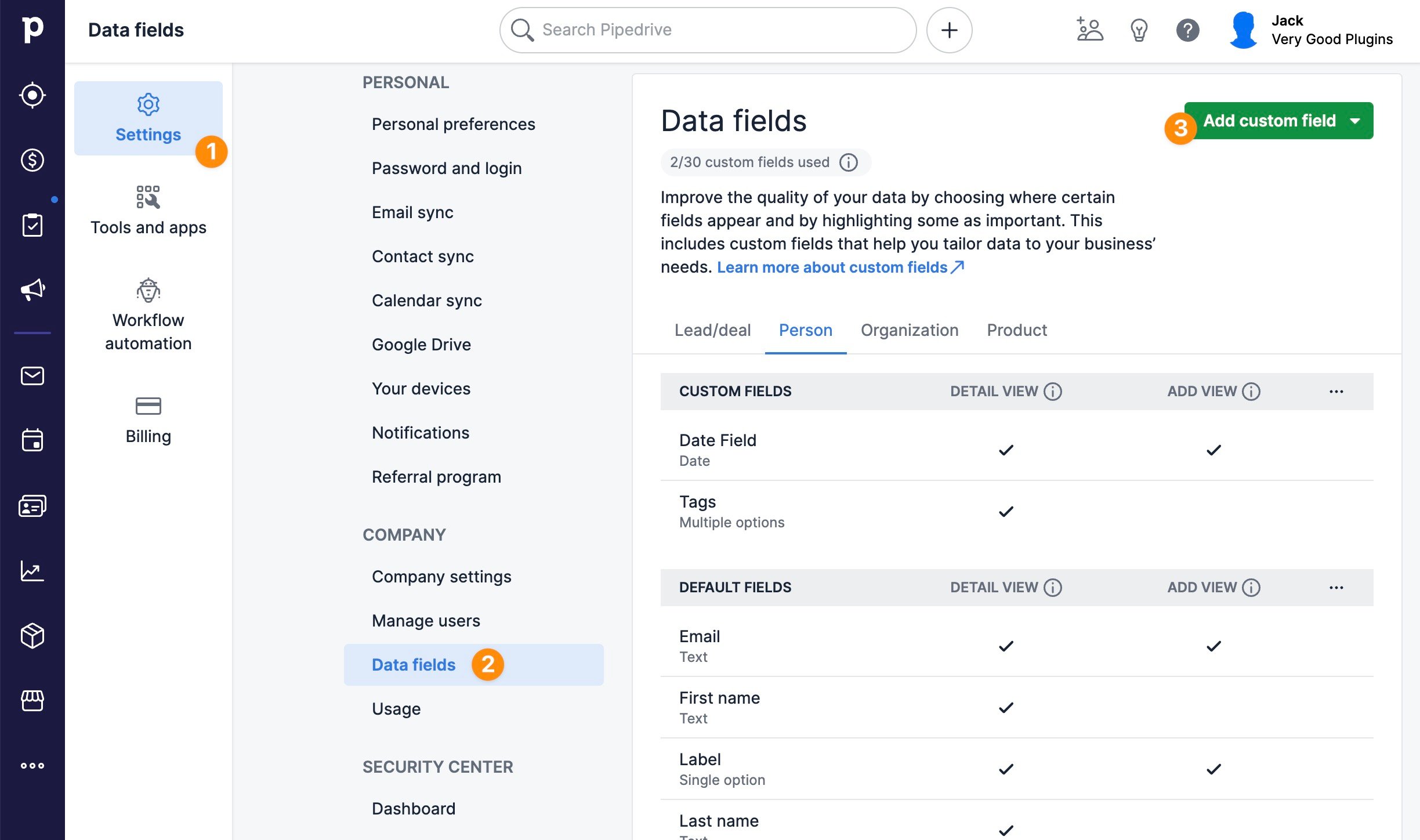
Click Add custom field, and choose Multiple Options as the field type.
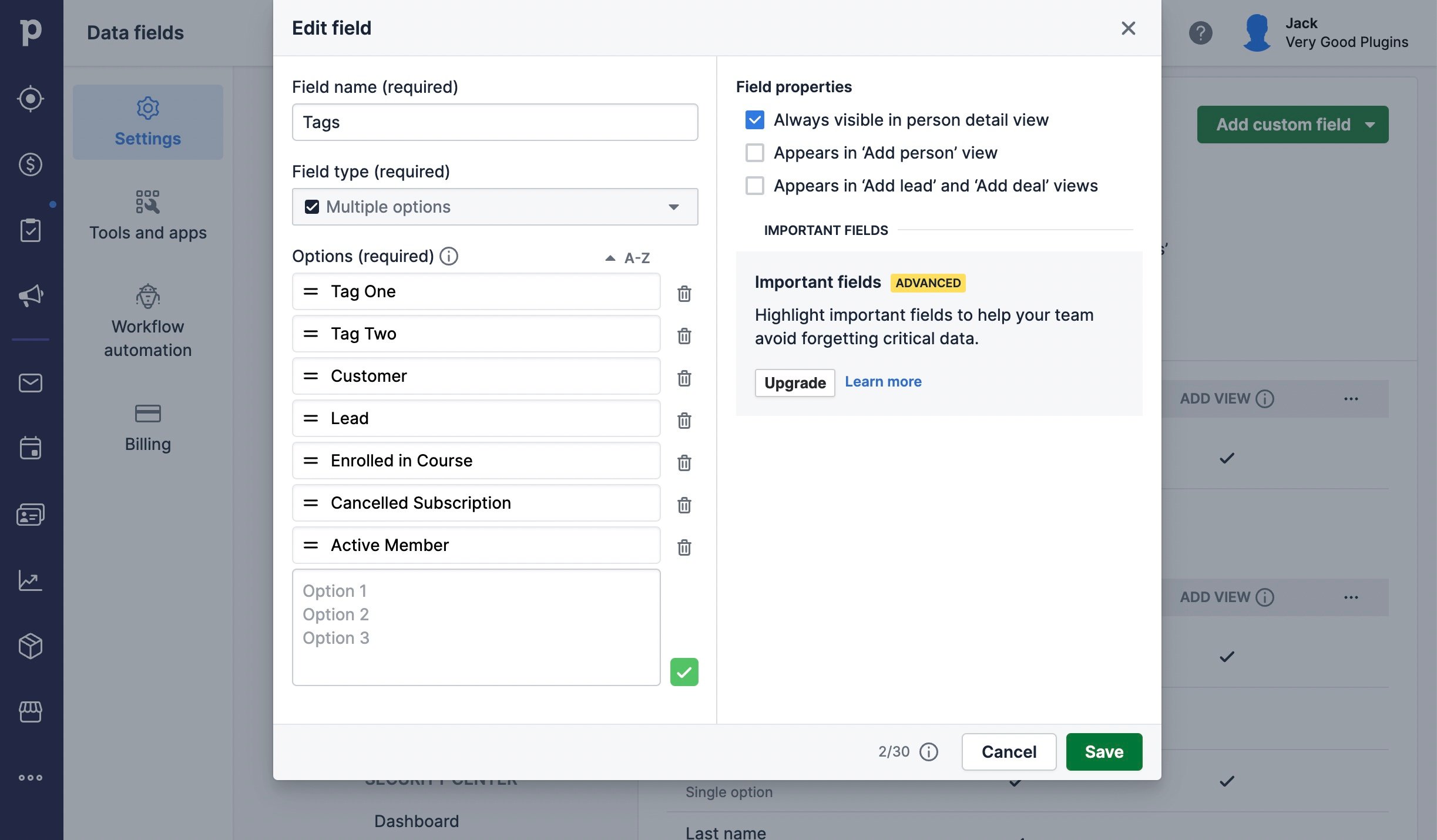
Now you can enter your available tags into the options list.
If you name the field “Tags”, WP Fusion will detect it and load the available tags automatically once the connection to Pipedrive is initialized.
If you use a different name, you can also manually select the desired tags field from the Setup tab.

After changing the segmentation type, click Refresh Available Tags & Fields in the WP Fusion settings to load the updated options.
Managing Labels in Pipedrive
Labels in Pipedrive are managed centrally and can be applied to any person record:
- In Pipedrive, go to Settings » Data fields » Labels
- Create new labels with descriptive names and colors
- Apply labels to person records as needed
WP Fusion will automatically sync these labels to WordPress when you click Resync Tags in the WP Fusion settings.
#Read-Only Labels
Important: WP Fusion can apply and remove existing labels from contact records, but it cannot create new labels in Pipedrive through the API. All labels must be created in Pipedrive first, then synced to WP Fusion.
This is by design—it ensures your label taxonomy remains organized and prevents automatic creation of unwanted or duplicate labels.