
#Overview
Using WP Fusion and Quiz and Survey Master, you can apply tags in your CRM when a student passes or fails a quiz, and sync quiz scores and points to custom fields.
Only graded quizzes are supported — surveys and simple forms aren’t scored by QSM, so they’re ignored by WP Fusion.
#Quiz Settings
WP Fusion’s settings for a quiz are found under the Add-ons dropdown when editing any quiz.
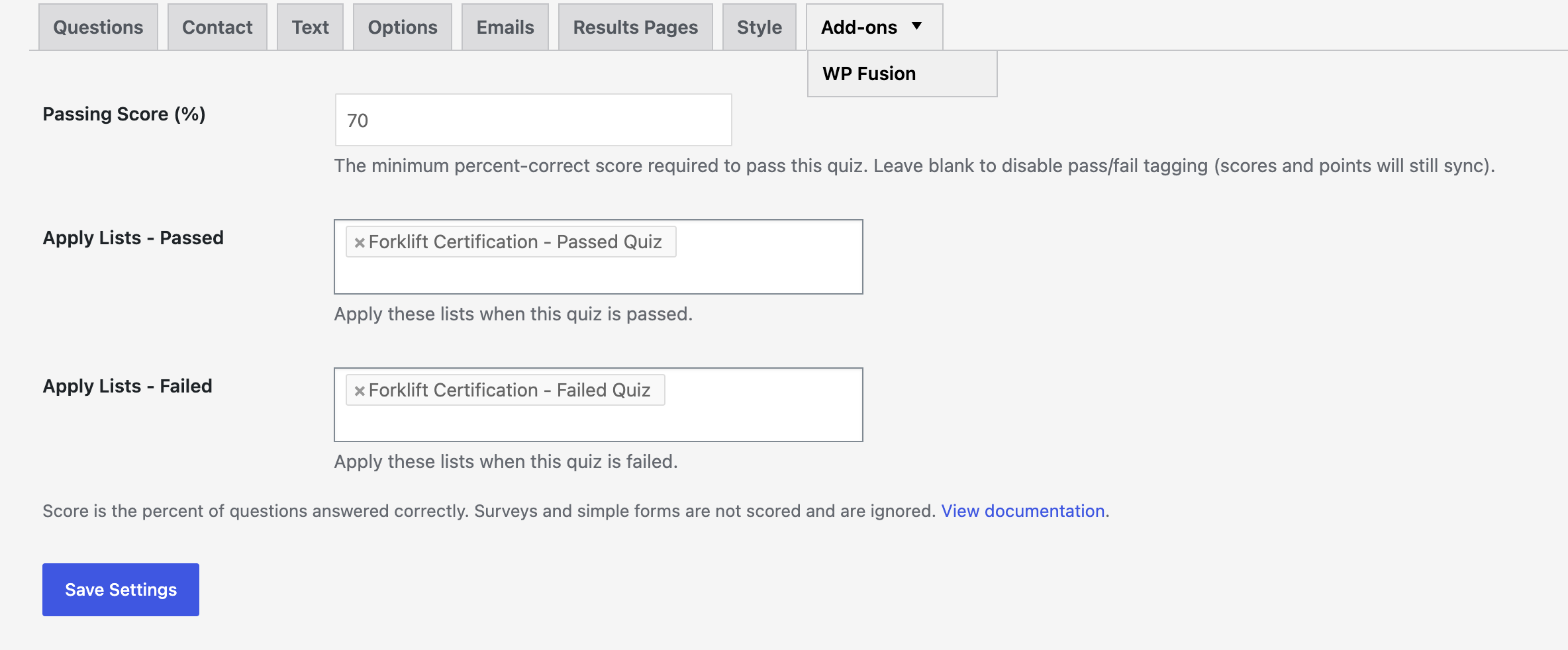
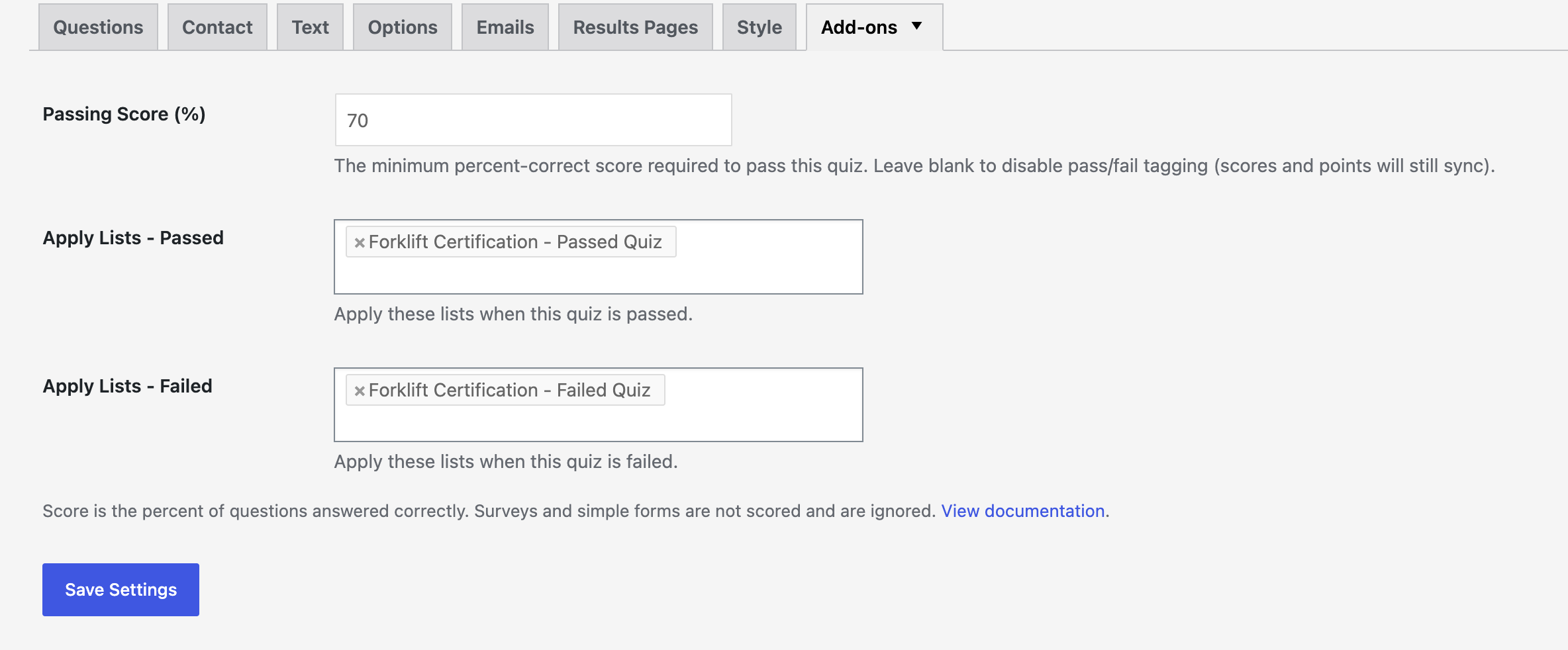
The available settings are:
- Passing Score (%): The minimum percent-correct score required to pass this quiz. Leave this blank to disable pass/fail tagging — the quiz’s score and points will still sync to your CRM.
- Apply Tags – Passed: These tags will be applied in your CRM when the quiz is submitted with a score greater than or equal to the Passing Score.
- Apply Tags – Failed: These tags will be applied in your CRM when the quiz is submitted with a score below the Passing Score.
Note: QSM (free) has no built-in pass/fail concept of its own — WP Fusion determines pass/fail by comparing the quiz’s percent-correct score to the Passing Score you configure. If your quiz uses QSM’s Points system and the individual answers aren’t marked correct/incorrect, the percent-correct score will be 0%, which will always be scored as a fail.
Only users who can already edit the quiz in QSM can save these settings. If Admin Permissions is enabled in the WP Fusion General Settings, the WP Fusion tab will only be editable by administrators, even for users who otherwise have permission to edit the quiz.
#Syncing Meta Fields
The following fields are available for sync under the Quiz and Survey Master field group in the WP Fusion settings (under Contact Fields):

- Last Quiz Name — The name of the most recently submitted quiz.
- Last Quiz Score (%) — The percent-correct score from the most recently submitted quiz.
- Last Quiz Points — The total points earned on the most recently submitted quiz.
- {Quiz Name} – Score (%) — The percent-correct score for a specific quiz. A field like this is generated automatically for every graded quiz on your site.
- {Quiz Name} – Points — The total points earned for a specific quiz. A field like this is generated automatically for every graded quiz on your site.
These are send-only fields — they’re synced to the CRM each time a quiz is submitted, but they aren’t loaded back from the CRM. Surveys and simple forms don’t have a score or points, so they don’t generate field rows and aren’t synced.
You can see this sync happening for a real submission in WP Fusion’s activity log:

#Guest Submissions
If a quiz is submitted by a logged-out visitor, WP Fusion will still sync the data as long as the quiz’s Contact fields include a valid email field. WP Fusion will look up the email address in your CRM and update the matching contact, or create a new one if no match is found — splitting the submitted name into first and last name where a name field was also captured.
If the quiz doesn’t capture an email address (or the visitor leaves it blank), the submission is skipped and nothing is synced.
#Notes
- Retaking a quiz re-applies the pass/fail tags and overwrites the score and points fields with the new submission’s values. A Failed tag applied on an earlier attempt is not automatically removed if a later attempt passes.
- Duplicating a quiz in QSM does not copy its WP Fusion settings (Passing Score or tags) to the new quiz — you’ll need to configure them again on the duplicate.
- If a tag applied here is also used elsewhere as a linked/auto-enrollment tag (for example on a LearnDash course), applying it from a quiz pass or fail will trigger that enrollment as normal.
#Developer Resources
#wpf_qsm_guest_registration_data
This filter lets you modify the data WP Fusion syncs to the CRM for a guest (logged-out) quiz submission, before the contact is created or updated.
function my_custom_qsm_guest_data( $update_data, $email_address, $contact_id ) {
	// Add a custom field for guest submissions only.
	$update_data['lead_source'] = 'QSM Guest Quiz';

	return $update_data;
}

add_filter( 'wpf_qsm_guest_registration_data', 'my_custom_qsm_guest_data', 10, 3 );
Parameters:
$update_data(array) — The data to be synced to the CRM.$email_address(string) — The email address captured on the quiz.$contact_id(string|bool) — The existing CRM contact ID if one was found by email, orfalseif a new contact will be created.