HubSpot is where a lot of us keep our marketing straight: contacts in one place, lists for segments, email workflows, and a timeline of who did what. If that is already your CRM, you are in good shape.
Your WordPress site is where the real action happens. That is where someone buys a membership, enrols in a course, fills out a form, or completes an order. WordPress runs your product, your content, and your checkout.
When those two systems only connect on form submit, HubSpot only sees part of the picture. The membership renewal, the lesson completion, the WooCommerce order – none of that reaches your CRM unless you wire it up.
WP Fusion connects WordPress and HubSpot. It watches what happens on your site and sends the right data to HubSpot: adding someone to a list, updating a contact field, or triggering the workflow you already built. You keep using WordPress and HubSpot the way you do today. WP Fusion handles the sync in the background.
Thousands of WordPress sites use WP Fusion with HubSpot – membership businesses, course creators, WooCommerce stores, and agencies. WP Fusion is a HubSpot certified app integration. Read customer success stories for real examples. WP Fusion connects WordPress to 60+ CRMs; this guide focuses on HubSpot.
“WP Fusion is the glue between your email list and the tools you depend upon.” — Darryl Burling, Master New Testament Greek
This guide walks through what that connection can do, how to connect the two tools, the automations most sites set up first, and how to fix list sync if you are on an existing setup. HubSpot requires WP Fusion Pro – Lite does not include HubSpot.
#About this guide
This is the current WP Fusion + HubSpot guide (updated July 2026). It is self-contained for connection, automation, and troubleshooting.
The connect tutorial adds extra Gravity Forms screenshots if you want a form-only walkthrough. You do not need both for basic setup – the steps below are enough to connect and automate.
If you already use WP Fusion + HubSpot and list rules recently stopped working, jump to List sync stopped working.
#What HubSpot gives you
If you are already on HubSpot, you probably rely on it for:
- A single contact record for each person in your audience
- Lists to segment leads, customers, and alumni
- Workflows that send email, update properties, or notify your team
- Reporting on marketing and sales activity
HubSpot has also expanded AI tools (including Breeze) for scoring, summaries, and workflow assistance. Breeze only works well when contact data is accurate – WP Fusion keeps that record current with purchases, enrolment, and progress from WordPress.
That works well for inbound marketing. The gap shows up when your product lives on WordPress and HubSpot never hears about purchases, access changes, or course progress.
#What WP Fusion adds when you have WordPress
WP Fusion is the bridge between your site and your CRM. With HubSpot connected, WordPress events can update HubSpot automatically:
- New user registration or profile update
- Form submission (Gravity Forms, WPForms, Fluent Forms, and supported form plugins)
- LMS or training access: enrolment, lesson completion, group access (LifterLMS, LearnDash, Tutor LMS, and others)
- Membership purchase, renewal, or cancellation (MemberPress, Paid Memberships Pro, Restrict Content Pro)
- WooCommerce order, refund, or abandoned cart
- HubSpot workflow or list change unlocking content on WordPress (linked lists – see next section)
That turns HubSpot from a lead capture tool into something that reflects your whole customer lifecycle on WordPress – and gives HubSpot AI and reporting better data to work with.
Run the latest WP Fusion release on your site so you have current HubSpot support.
#Linked lists: let HubSpot control access on WordPress

Get Automated. Get WP Fusion.
Connect WordPress to HubSpot without middleware on every enrolment or order. See WP Fusion plans.
View pricingThis is the feature most teams come to WP Fusion for, and it is the hardest thing to replicate with HubSpot’s native WordPress plugin alone.
A linked list ties a HubSpot list to WordPress access:
- Contact on the list → user gets the membership level, LMS access, group, or download you linked
- Contact removed from the list → access is removed
Why it matters: Your sales or success team can add someone to a list in HubSpot – after a deal closes, after a support escalation, after a workflow branch – and WordPress access updates without manual admin work.
Example: A workflow adds someone to your `Customer` list after a deal closes. WP Fusion grants the linked LifterLMS membership or MemberPress level automatically.
Setup:
- In WP Fusion, open the membership level, LMS content, group, or download settings.
- Choose Linked lists and select the HubSpot list (prefer static lists for access control).
- In HubSpot, add a test contact to that list.
- Confirm access on WordPress; remove the list and confirm access revokes.
Use static lists for access control when you can. Active lists re-evaluate on HubSpot’s schedule – a contact can drop off mid-session and lose access unexpectedly. Static lists stay stable until you change list membership in HubSpot.
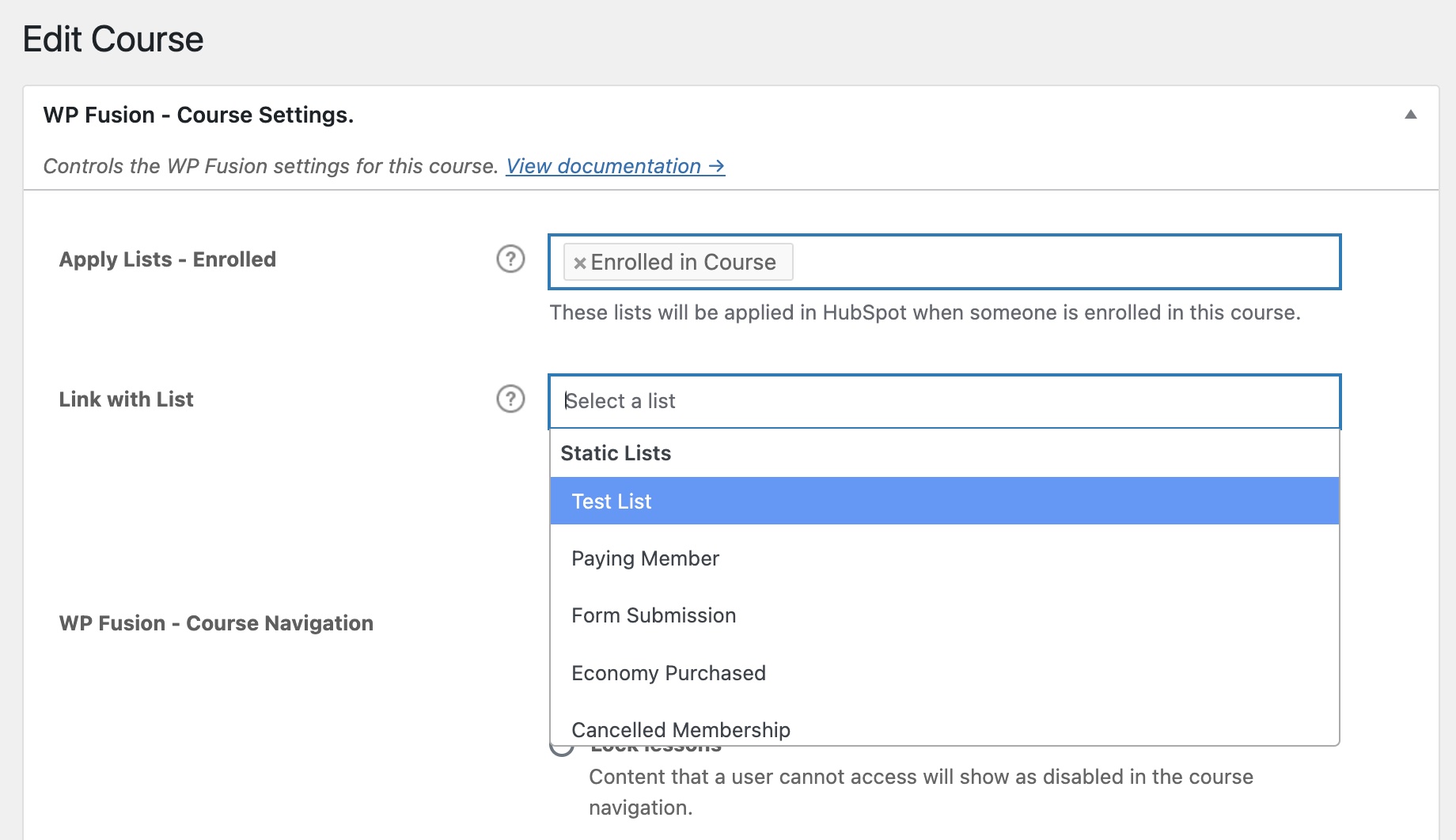
More detail: Working with tags and lists.
#Example: from purchase to onboarding (end to end)
Here is one complete scenario – a training site selling a course through MemberPress or LifterLMS. The same pattern works for WooCommerce products or membership levels.
- Customer purchases on WordPress (checkout completes).
- WP Fusion applies the HubSpot list `New Course Customer` and syncs name, email, and product fields.
- HubSpot workflow fires on list enrollment: welcome email, internal Slack notification, or task for your success team.
- Customer completes lesson 1. WP Fusion updates a contact property (for example `Course progress`) or applies a second list `Started course`.
- HubSpot workflow sends the next lesson nudge or assigns a different email sequence.
- Optional – linked list: If `Active student` is a linked list on the course, adding the contact in HubSpot can grant access without a new purchase.
Test each step with one staging user before you turn workflows live. Check WP Fusion > Logs if a list or field does not update.
#HubSpot’s native WordPress plugin vs WP Fusion
HubSpot offers a free WordPress plugin (Leadin) for forms, chat, and basic tracking. It works alongside WP Fusion for many sites.
| Scenario | HubSpot plugin (Leadin) | WP Fusion |
|---|---|---|
| HubSpot forms, chat, and tracking pixels on marketing pages | Built for this | Optional – you can still use Leadin for capture while WP Fusion handles deep sync |
| Apply HubSpot lists when someone enrols, completes a lesson, or joins a group | No LMS or membership hooks | LifterLMS, LearnDash, Tutor LMS, MemberPress, PMPro, RCP, and others |
| Sync WooCommerce orders, products, refunds, or abandoned carts | No order-level sync to HubSpot lists or deal fields | WooCommerce + HubSpot |
| HubSpot list controls WordPress membership, course, or download access | Not supported | Linked lists |
| Bidirectional update: HubSpot workflow changes a contact and WordPress access updates | Limited without custom development | Linked lists + webhooks |
| Same automation patterns if you switch CRM later | HubSpot only | 60+ CRMs and marketing platforms |
Practical rule: Leadin for marketing capture on landing pages; WP Fusion when WordPress behaviour should drive HubSpot lists, properties, and access.
Paying for Zapier on every enrolment or order? Read WP Fusion vs Zapier.
#Which guide should I read?
| If you want to… | Read this |
|---|---|
| Connect HubSpot, map fields, and automate (full guide) | This page – start at Connecting HubSpot to WordPress |
| Extra Gravity Forms screenshots only | HubSpot connect tutorial |
| Fix list sync on a site that was already connected | List sync stopped working |
#Key terms
| Term | Meaning |
|---|---|
| HubSpot list | A segment in HubSpot. WP Fusion can add or remove contacts when something happens on your site. |
| Apply lists | Tell WP Fusion to put a contact on specific HubSpot lists (for example after a form submit or purchase). |
| Linked list | A HubSpot list that controls WordPress access: on the list = access granted; off the list = access removed. |
| Webhook | A secure URL on your site that HubSpot calls to update a user or their access. |
| List migration tool | A one-time WP Fusion wizard that updates saved list choices in your site settings when list sync has stopped working. |
#What you’ll need
- WP Fusion Pro (HubSpot is not available in Lite)
- HubSpot account with permission to authorize apps
- WordPress Administrator access
- The latest WP Fusion release installed on your site
#Which HubSpot plan do I need?
You can connect WP Fusion on HubSpot Free or Starter for basic contact sync, list application on form submits, and field mapping – within HubSpot’s contact and API limits.
Several patterns in this guide need HubSpot Workflows (or equivalent automation), which usually means Marketing Hub Professional or higher:
- Linked lists driven by HubSpot workflows (list add/remove triggers access on WordPress)
- Multi-step onboarding after a list change or property update
- Webhooks back to WordPress from workflow actions (see HubSpot webhooks)
If you are on Free or Starter, you can still sync WordPress → HubSpot (purchases, enrolments, forms → lists and fields). Plan upgrades matter most when HubSpot needs to drive WordPress through workflows and linked lists.
Check your portal’s workflow availability in HubSpot before you build linked-list access rules. HubSpot pricing changes – confirm current tiers on HubSpot’s pricing page.
#Connecting HubSpot to WordPress
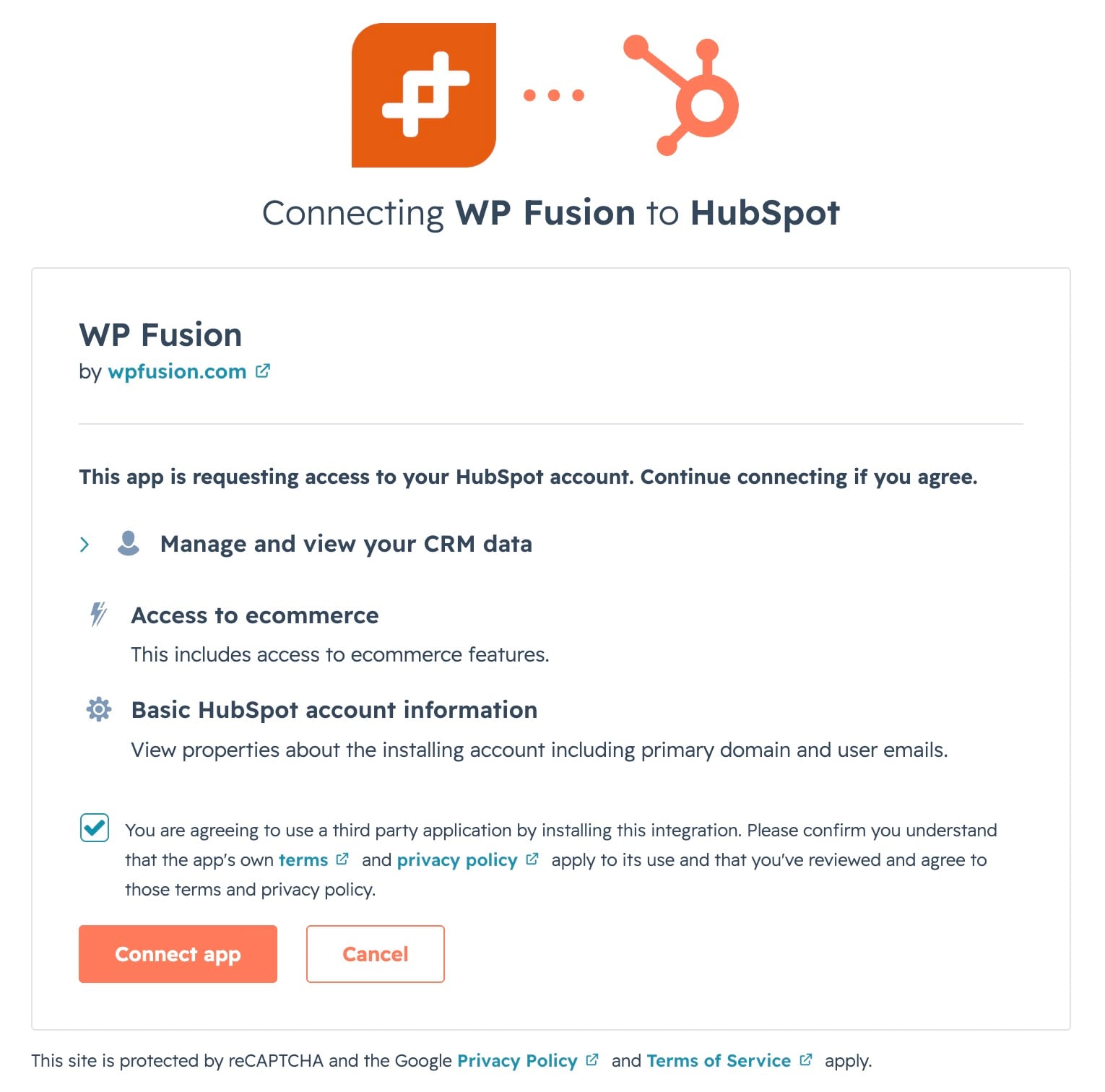
- Install WP Fusion Pro and open Settings > WP Fusion
- Select HubSpot and click Authorize with HubSpot (choose the correct portal)
- Enter your WP Fusion license key
- Open Contact Fields, map email, name, and any custom fields, then save
- Run a test: register a test user or submit a test form, then confirm the contact in HubSpot Contacts
- Add your first automation: form feed, membership level, or product → Apply lists
Detailed permission notes: How to connect HubSpot to WordPress. For a form-only screenshot walkthrough, see the connect tutorial.
When HubSpot shows as connected, use the sections below to choose what to automate on your site.
Field mapping reference: Syncing contact fields.
#Automation patterns: sync WordPress behaviour to HubSpot
Once HubSpot is connected, WP Fusion can react to site events, not only form submits. Pick the patterns that match your business model.
| You want to… | WordPress trigger | Where to configure | Documentation |
|---|---|---|---|
| Add form leads to HubSpot lists | Form submission | Your form plugin → WP Fusion feed → Apply lists | Gravity Forms |
| Sync new users to HubSpot | Registration / profile update | Settings > WP Fusion + Contact Fields | Installation guide |
| Tag buyers or apply lists on purchase | WooCommerce order | Products > Edit > WP Fusion | WooCommerce + HubSpot tutorial |
| Recover abandoned carts in HubSpot | Cart abandoned | WP Fusion > Integrations > WooCommerce | Abandoned cart tracking |
| Apply lists on LMS or membership events | Enrolment, level change, group access | LifterLMS, LearnDash, MemberPress, PMPro, etc. | See integrations below |
| Let HubSpot control access on WordPress | Contact added/removed from list | Linked lists (see Linked lists above) | Working with tags and lists |
Forms: Map fields, choose Apply lists, test, confirm in HubSpot Contacts. Same pattern across form plugins.

#LMS and membership integrations
WP Fusion hooks into how you sell and deliver access – memberships, training programs, and courses share the same pattern: something happens on WordPress, WP Fusion applies a HubSpot list, your CRM workflow takes over.
| Stack | Documentation |
|---|---|
| LifterLMS | LifterLMS integration |
| LearnDash | LearnDash + WP Fusion |
| Tutor LMS | Tutor LMS integration |
| MemberPress | MemberPress integration |
| Paid Memberships Pro | PMPro integration |
| Restrict Content Pro | RCP integration |
Running a training or membership business: WP Fusion for course creators.
Typical pattern: access changes on WordPress → apply HubSpot list → workflow sends onboarding email, assigns owner, or triggers sales follow-up.
#When HubSpot needs to update WordPress (workflows and webhooks)
Most patterns above are WordPress → HubSpot. Sometimes you need the reverse:
- HubSpot workflow adds a list → unlock WordPress content (pairs with linked lists above)
- HubSpot property changes → update WordPress user meta
- HubSpot list enrollment → create a WordPress user
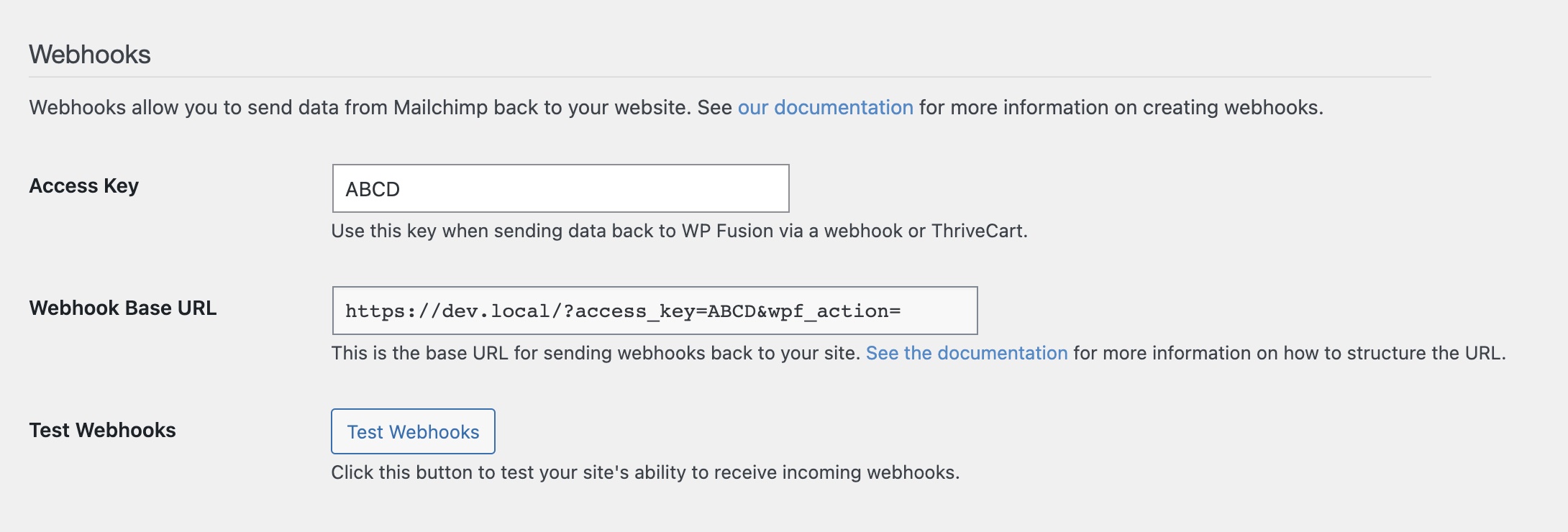
That uses a webhook, a secure URL on your site that HubSpot calls. Recent WP Fusion releases process webhooks asynchronously so HubSpot gets a fast response even on slower hosting – check WP Fusion > Logs if a workflow shows success but WordPress did not update.
Setup:
- Copy the webhook URL and access key from Settings > WP Fusion > General (Webhooks). See HubSpot webhooks.
- In HubSpot, add Update WordPress in a workflow or set up a private-app webhook.
- Test with one contact on a staging site first.
If the workflow shows success but nothing changed on WordPress, check WP Fusion > Logs.

Event tracking (page views, plugin events on contact timeline): HubSpot event tracking.
#Using HubSpot’s free WordPress plugin alongside WP Fusion
Many sites run both:
- HubSpot (Leadin): chat, pop-ups, native HubSpot forms on landing pages
- WP Fusion: deep sync for membership, LMS, WooCommerce, and linked lists
They solve different problems. Both can run on the same site without conflict.
#List sync stopped working?
For existing WP Fusion + HubSpot sites: If you connected a while ago and everything was running fine, you may have hit a snag recently. Some sites saw form feeds stop adding contacts to the right lists. Membership or course access tied to a HubSpot list stopped updating. When you save a setting, you might see invalid or unknown list.
We shipped an update to fix this. Here is what happened.
When you pick a HubSpot list in WP Fusion, that choice is saved inside WordPress – on form feeds, membership levels, LMS rules, and similar. HubSpot updated how lists work on their side. Your lists in HubSpot were still there, but the saved references in WordPress needed to be refreshed so WP Fusion could find them again. No contacts were deleted. Nothing changed in HubSpot itself. WordPress just needed to catch up.
If that sounds like your site, update to the latest WP Fusion and run the list migration tool:
- Go to Settings > WP Fusion > HubSpot.
- Open the list migration tool when it appears.
- Click Scan and review the preview.
- Click Confirm (nothing changes until you confirm).
- Test one form feed and one linked list rule.
The tool finds every saved list choice in your site, shows you what will change, and updates them when you confirm. It does not delete contacts or change who is on a list in HubSpot. It only updates what WordPress has stored.
More detail: How lists work with HubSpot.
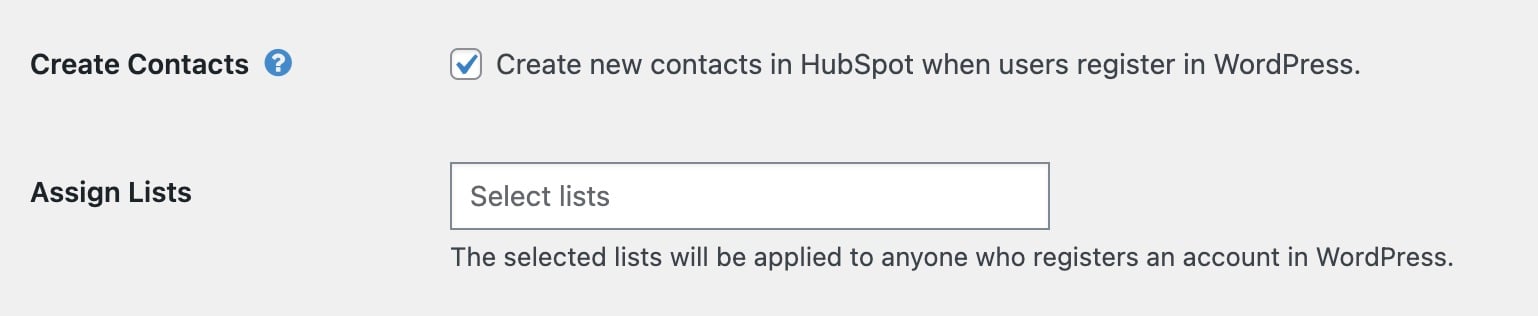

Setting up for the first time and lists already work? Skip this section.
| Situation | What to do |
|---|---|
| First time connecting HubSpot | Use Connecting HubSpot to WordPress above – you should not need this |
| Lists and access rules work as expected | Skip this section |
| Lists or access rules used to work and stopped | Run the list migration tool above |
| Invalid or unknown list when saving a feed or access rule | Run the list migration tool above |
#Troubleshooting
| What you’re seeing | Likely cause | What to try |
|---|---|---|
| Lists stopped applying | Saved list choices in WordPress need updating | List sync stopped working |
| Invalid or unknown list when saving | Outdated plugin or list needs re-selecting | Update WP Fusion; run list migration tool |
| HubSpot workflow shows timeout or failure | Plugin or hosting timing | Update WP Fusion; check WP Fusion > Logs |
| Contact not created in HubSpot | Missing email or permissions | Check field map; verify HubSpot app access |
| Field not clearing in HubSpot when emptied on WordPress | Older plugin build | Update WP Fusion; test again |
| Too many API errors during checkout | Rate limits | Update WP Fusion; retry during lower traffic |
| Linked list access wrong | Stale list on the rule or wrong list type | Re-save linked list; use static lists; check logs |
| Workflow runs but WordPress access unchanged | HubSpot plan lacks workflows, or webhook misconfigured | See Which HubSpot plan do I need? |
Always check WP Fusion > Logs first. For API errors, see HubSpot’s status page and your portal’s private app scopes.
Support: open a ticket with log export if stuck.
#FAQ
#Do I need the list migration tool?
No if you are connecting HubSpot for the first time and lists work. Yes if list rules stopped working – see List sync stopped working.
#Which HubSpot guide should I read first?
Use this guide for connection, automation, linked lists, and list-sync fixes. Use the connect tutorial only if you want extra Gravity Forms screenshots.
#What does the list migration tool do?
It finds HubSpot list choices saved in your WordPress settings and updates them after you review and confirm. Run it once if list sync stopped working. New setups normally never need it.
#Do I need Zapier if I have WP Fusion and HubSpot?
Usually not for WordPress-native events. WP Fusion listens on the site and syncs directly. Zapier still helps for non-WordPress systems (accounting, custom SaaS, etc.).
#What is a linked list?
A HubSpot list linked to WordPress so list membership controls access – membership level, LMS content, or a protected download. On the list = access granted; off the list = access removed.
#Which HubSpot plan do I need for linked lists and workflows?
Basic sync works on lower tiers. Workflows that drive linked lists or webhooks back to WordPress usually require Marketing Hub Professional or higher. See Which HubSpot plan do I need?.
#Will this work with HubSpot free?
Yes, within HubSpot plan limits for contacts and API usage. Advanced automation and workflow-driven linked lists need paid HubSpot tiers.
#Does WP Fusion support HubSpot ecommerce?
Yes. WooCommerce orders, product settings, enhanced ecommerce, and abandoned cart tracking are supported.
#Can I use multiselect fields for segmentation in HubSpot?
Yes. See using a multiselect for segmentation.
#Is WP Fusion HubSpot certified?
Yes. WP Fusion is a HubSpot certified app integration.
#Next steps
- Ready to connect? WP Fusion Pro pricing (HubSpot requires Pro)
- Membership or LMS site? WP Fusion for course creators
- Comparing middleware? WP Fusion vs Zapier
- HubSpot CRM hub: WP Fusion + HubSpot
- Proof it works: Customer success stories
Get Automated. Get WP Fusion.
Ready to connect WordPress and HubSpot? View WP Fusion Pro plans (HubSpot requires Pro).
View pricing